THIS SOLUTION ONLY WORKS IN OUR POWERPOINT PLUG-IN
PROBLEM
I need a set-up that lets attendees choose ONE ANSWER to multiple-choice question and (optionally) assign which ONE of the answers is correct.
I need to set up a vote where the voters can choose MORE THAN ONE answer, but I don't need to indicate which one is correct.
SOLUTION
There are two different slides available in our EZ-VOTE Plugin that you can use depending on the goal that you're trying to achieve.
There's a single-vote, multiple choice slide that allows for each voter to cast a SINGLE vote against any of the available answer choices. The voter can change their mind any number of times, but only the last vote will be counted. These slides support assigning a correct answer to ONE/SINGLE answer so that you can track it in Leaderboard slides and reports and show it to the audience at the end of the vote.
Then there is a multi-vote, multiple choice slide that allows to choose MORE THAN ONE answer choice, so that you can ask the audience to "pick X out of Y" or "select all that apply". This slide does NOT support assigning a correct answer to any of the available choices.
There is also a distinct difference between how the keypads work with each type of slide.
On a single-vote slide, the voter will never need to press the "Send" (paper plane icon) button on the keypad because these slides only support up to ten (10) answers, so the only limitation is the hardware you're using: EZ-VOTE 5 can only pick answers 1 through 5 and EZ-VOTE 10 keypads can pick answers 1 through 10.
On a multi-vote slide, slide can be designed with more than ten (10) answers, but an EZ-VOTE 5 keypad will still be limited to answers 1 through 5, while EZ-VOTE 10 will be able to enter up to 30 answers by utilizing double-digit entry.
For example, if you build a multi-vote slide with single-digit entry, you will be limited to 5 or 10 answers and if you choose three (3) possible choices:
- you'll press 1 (wait for "OK" confirmation), then 2 (wait for "OK" confirmation) , then 3 (wait for "OK" confirmation) without ever pressing the "Send" button.
- you'll use the same sequence on the EZ-VOTE 5 as well as EZ-VOTE 10 keypads
If you build a multi-vote slide with multi-digit entry, you will be limited to 30 answers, but EZ-VOTE 5 keypad will not be very useful and:
- you'll press 1, then "SEND" (wait for "OK" confirmation), then 11, then "SEND" (wait for "OK" confirmation), then 27, then "SEND" (wait for "OK" confirmation).
Using the screenshot below, explain what each option means:
- Keypad Type
- Total Responses
- Allow Repeat Selection
- Response Type
Also mention that only the first X answers are recorded (not last). In other words, unlike in single-vote mode, where the LAST vote counts, on a multi-vote slide only the FIRST X VOTES count.
Try inserting a Multi-Vote Slide into your presentation. You can insert a Multi-Vote Slide by navigating to the EZ-VOTE tab in PowerPoint. Then, select the "Multi-Vote Slide" option from the dropdown menu under "Insert Question" button. A menu screen should pop up as seen below. 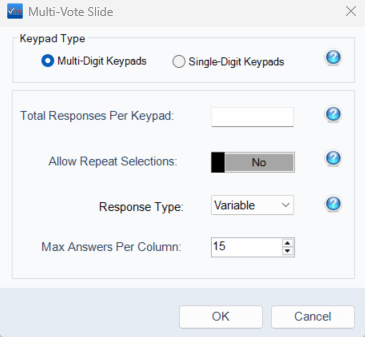
The first option will allow you to select multi-digit or single-digit keypads. You will need multi-digit keypads if there are more than 9 potential multiple-choice responses. The total responses per keypad field allows you to select the maximum number of keypads can vote. Allowing repeat selections would allow for attendees to vote any answer options more than once. The response type allows you to set whether or not the attendees must select a fixed number of responses or not.
Was this article helpful? Please leave your feedback below.
Was this article helpful?
That’s Great!
Thank you for your feedback
Sorry! We couldn't be helpful
Thank you for your feedback
Feedback sent
We appreciate your effort and will try to fix the article