PROBLEM
You need to filter your collected data by a subset of the participant group.
SOLUTION
Navigate to the tools dropdown menu from the EZ-VOTE tab in PowerPoint. Select the "manage participant list" option to create or edit your list. When you are creating the list, create a closed-ended descriptor of your choice to separate the subsets of your participant list. In the image below, you can see that I have created a descriptor called "group" which I have used to distinguish faculty members. I then added the descriptor attribute faculty and other to attach to each participant.
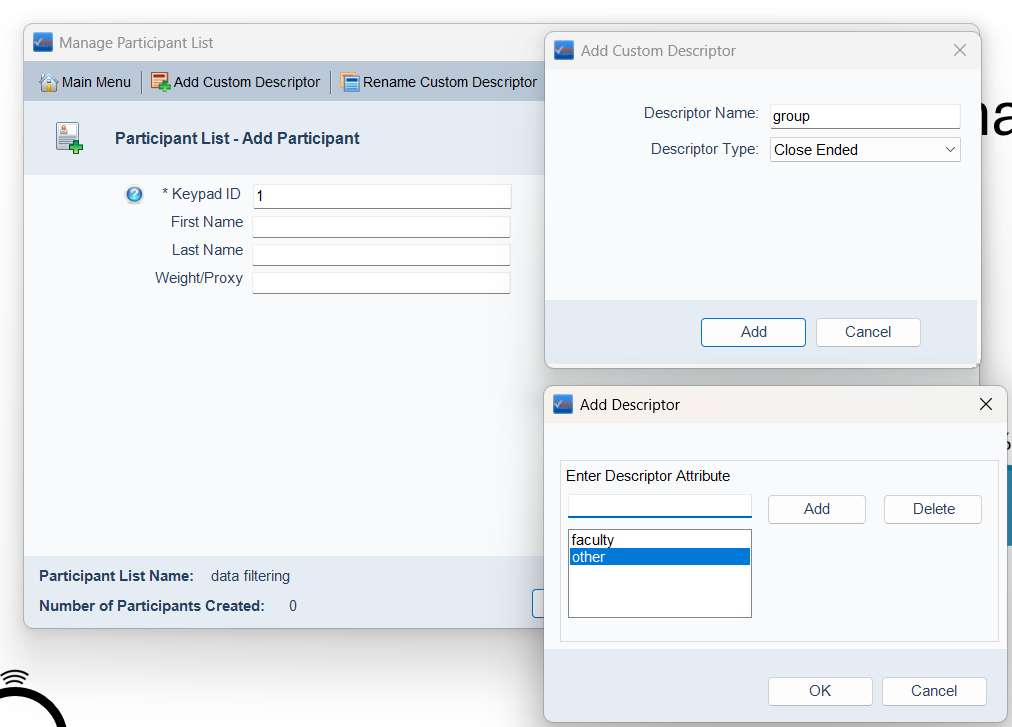
Make sure that you complete the entire list before selecting the finish list button. If you have a long list of participants, you may wish to create the .CSV file in excel and import the file into PowerPoint to save time. I set up my list so that it contains keypad IDs #1-5 with keypads #1-3 in the "faculty" group and #4-5 in a group labeled "other." Do not forget to assign the descriptor to each of your participants.
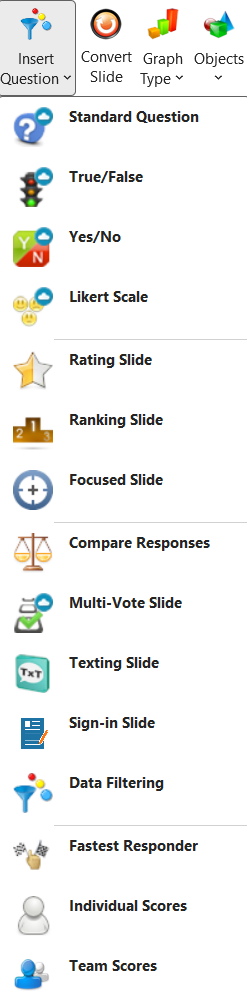
Now that I have created my participant list, I made a standard question slide to poll the entire group. After I have created the slide, I must insert a "data filtering" slide after the standard question slide so that I can see specifically how the faculty members voted. To do this, select the "insert question" dropdown menu from the EZ-VOTE tab, and select the "data filtering" slide.
Insert Question Dropdown Menu
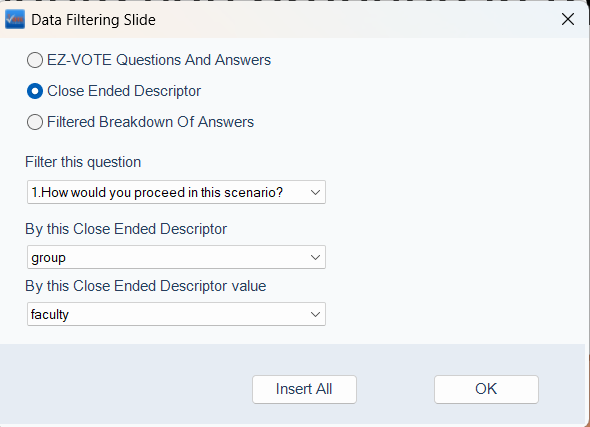
Once you select the data filtering slide, select the desired settings from the pop-up window. Since I wish to filter the data by faculty, I will select question 1 as the question to filter, with the close-ended descriptor being group and that group's value being faculty.
Data Filtering Settings
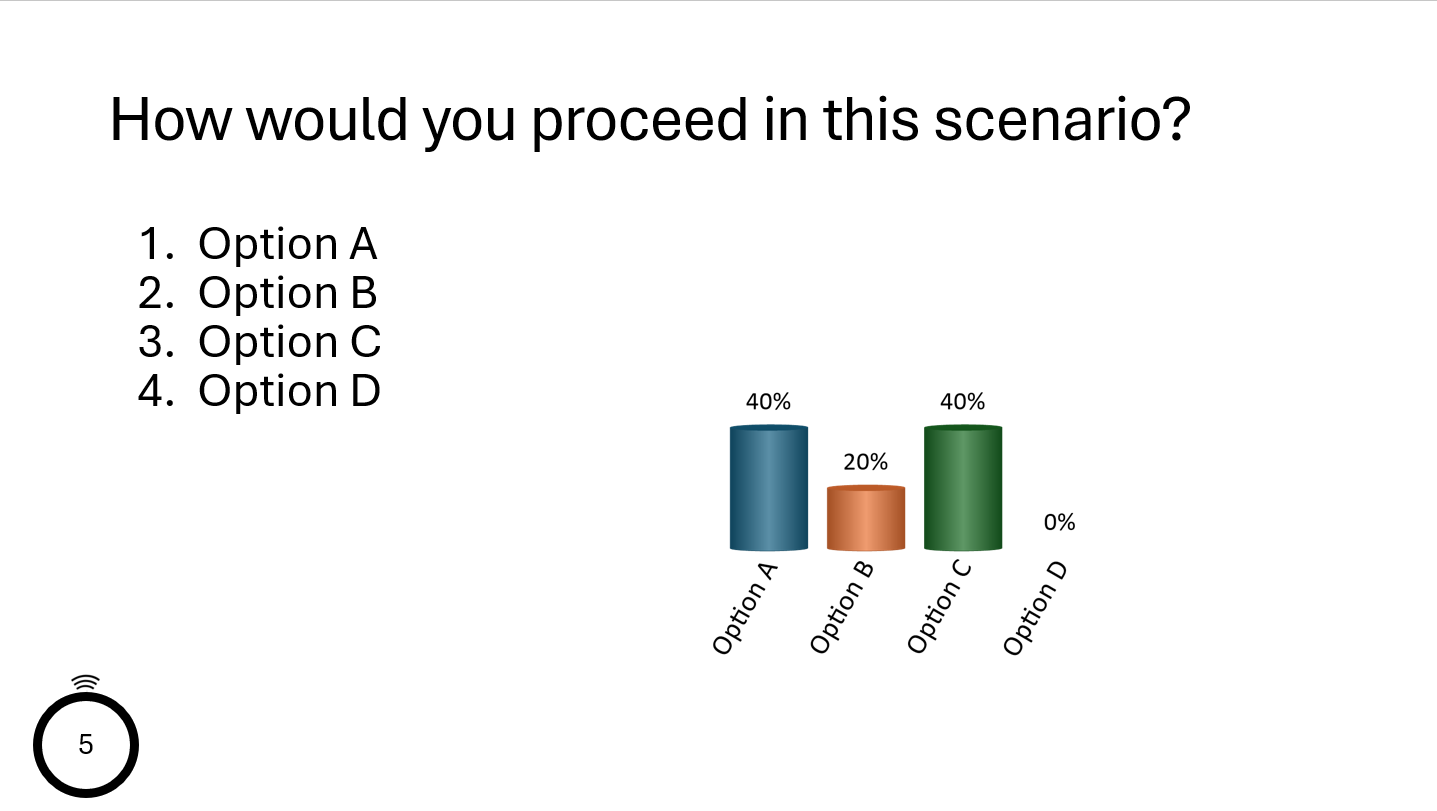
After I have created the data filtering slide, I can start the poll on the original standard question. The results of that poll can be seen below.
Standard Question Poll
In order to see the filtered results, I must simply navigate in slide show mode to the next slide which is the data filtering slide that I created. You can see the results of the data filtered by faculty below.
Filtered Data
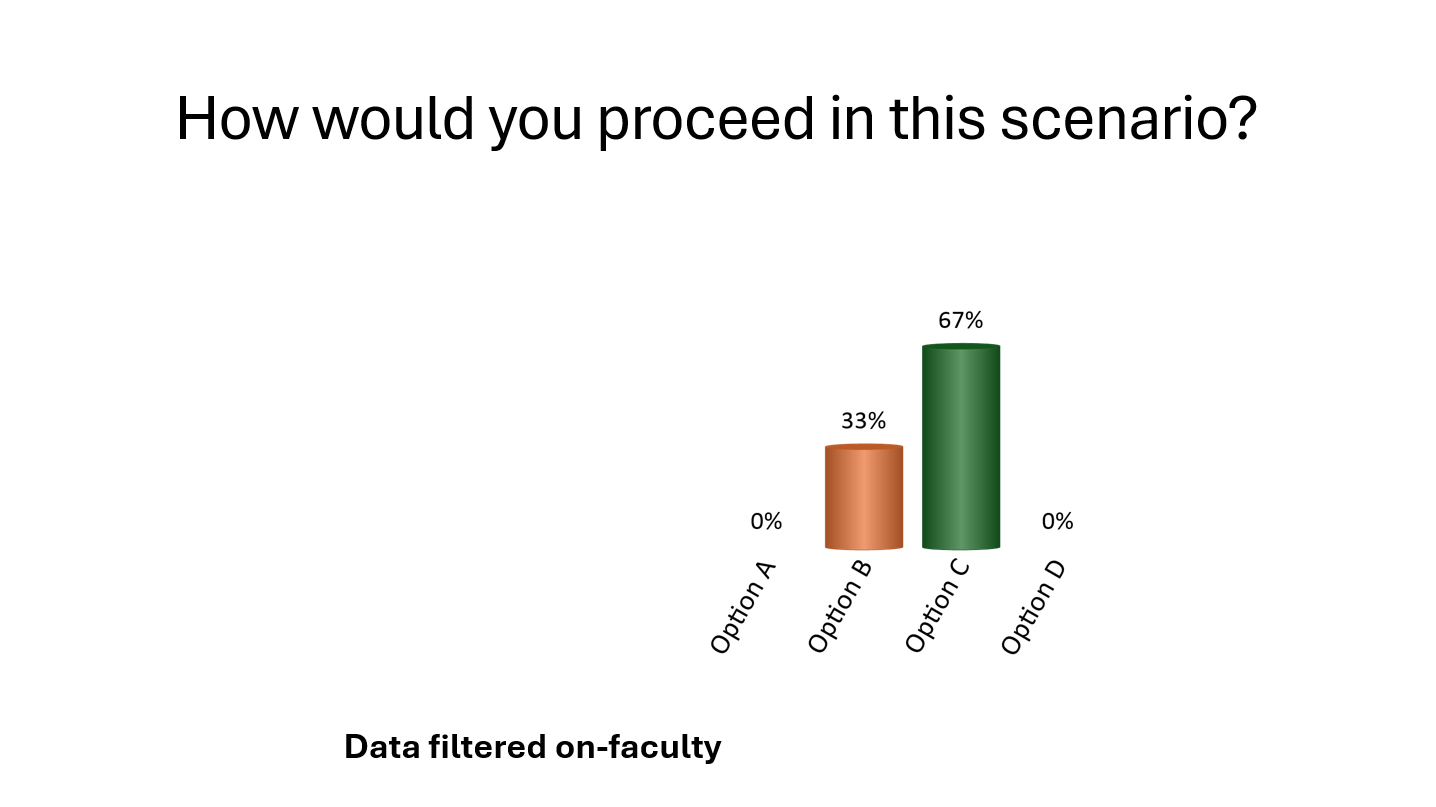
Now that we see the data filtered slide, we can make deductions about how the faculty feels compared to the rest of the participant group. Keep in mind that you may wish to move the elements on the screen (text boxes, charts/graphs, etc.) in order to match your brand image or the rest of the presentation.
YOUTUBE TUTORIAL
Was this article helpful? Please leave your feedback below.
Was this article helpful?
That’s Great!
Thank you for your feedback
Sorry! We couldn't be helpful
Thank you for your feedback
Feedback sent
We appreciate your effort and will try to fix the article