If you have conducted multiple sessions using the same presentation created in our EZ-VOTE plugin, you may have the need to merge all the sessions into a single report that tells you how EVERYONE has voted across all days and times when the sessions took place.
If you used our Connect app, the data can be synced to your CloudVOTE account and automatically aggregated (as long as the Template you used has always been the same) under the Polls/Reports section of the CloudVOTE website.
However, you have the ability to merge your results using a small "Merge Tool" - a utility we built just for that purpose.
It's very easy to use.
Generate Reports
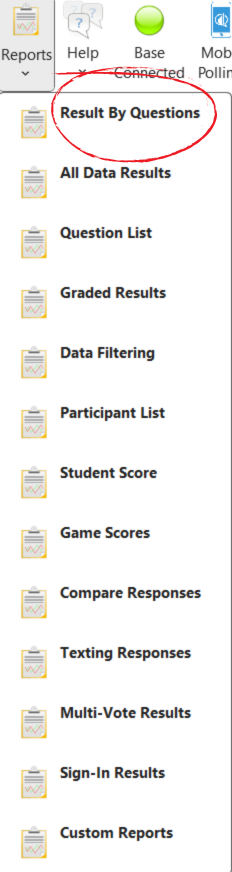
First, remember that you have to export the "Results by Question" report from report dropdown menu (see below) of each of the PowerPoint presentations. Save each with a distinct name, so you recognize them later, for example: "Results from Session 1, on Tuesday" and "Results from Session 2 on Wednesday" or something similar.
Merge Reports
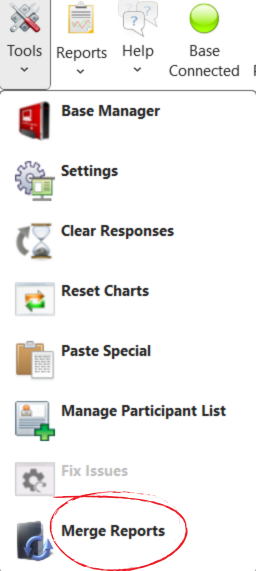
Find the "merge reports" icon under the tools dropdown menu at the bottom:
Once you have the Merge Tool open, select the files you want to merge at the top:
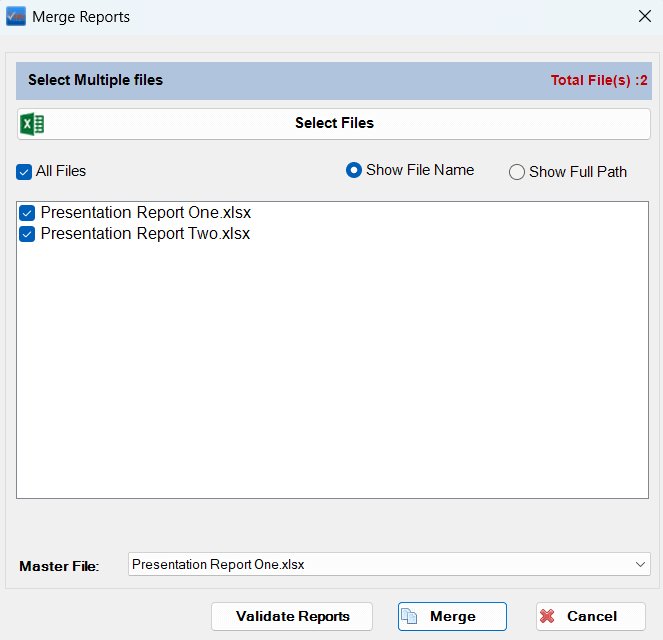
In the File Explorer, you can highlight multiple files at once:

Select your "master" file - which is the one you want the others to be compared to:
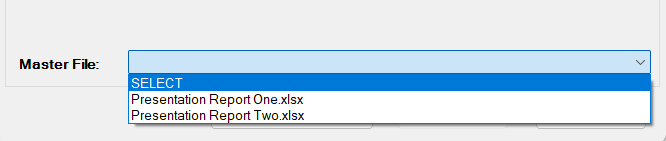
Validate the reports and then create the merged file by selecting merge at the bottom:

the actual process of merging may take a while, depending mostly on three things:
1) performance of your computer
2) number of questions in each report
3) number of reports that need to be merged
When finished, you'll see the new, merged report open in Excel automatically. The individual reports this 'master' one was created from will be available on separate tabs at the bottom of the screen:

Was this helpful? Let us know below...
Was this article helpful?
That’s Great!
Thank you for your feedback
Sorry! We couldn't be helpful
Thank you for your feedback
Feedback sent
We appreciate your effort and will try to fix the article