PROBLEM
Sometimes, it can be helpful to use a response grid on your polling slide, to gather real-time feedback from the voters.
SOLUTION
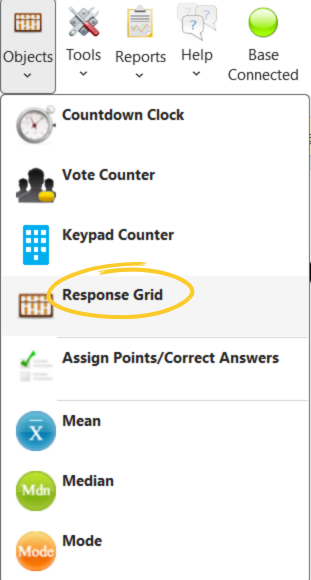
When you have the polling slide ready, navigate to the EZ-VOTE tab, and then click on the objects dropdown menu. Now, select the response grid option, four rows down to pull up the response grid settings.
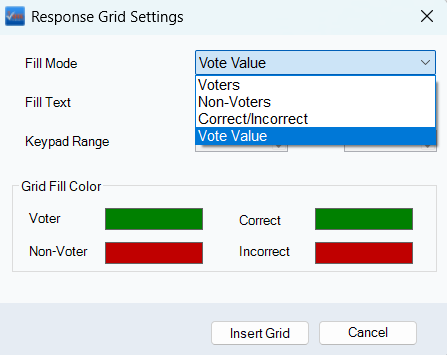
Choose your fill mode which will change the criteria displayed on the grid. For example, the voters fill mode will show the voters, while the non-voters option shows the non-voters. The correct/incorrect option will display whether the voter voted for the correct or incorrect answer when using polling slides with correct and incorrect answers assigned. Lastly, the vote value fill mode will display the value each voter voted for like green for “yes” and red for “no” answers.
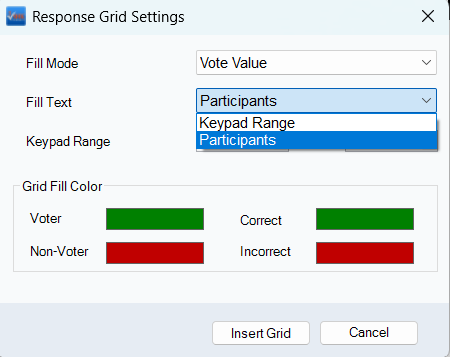
Line 6: Next, the fill text settings will adjust what is displayed on the grid to represent the voters. If you just wish to display the keypad ID numbers to the audience, select the keypad range option, and then input the desired range. In my scenario, I have five voters, keypads 1 through 5, so I will adjust the keypad range accordingly. Alternatively, I can choose to show the participant’s names by selecting the “Participants” fill mode, but this will only work if you have set up a participant list.
You may adjust the grid fill color to your liking and then be sure to select the insert grid option when finished. Now, you can see the grid at the bottom of the polling slide. You may want to resize either the grid or the objects around the grid like the countdown timer, in order for it to fit on the screen best.
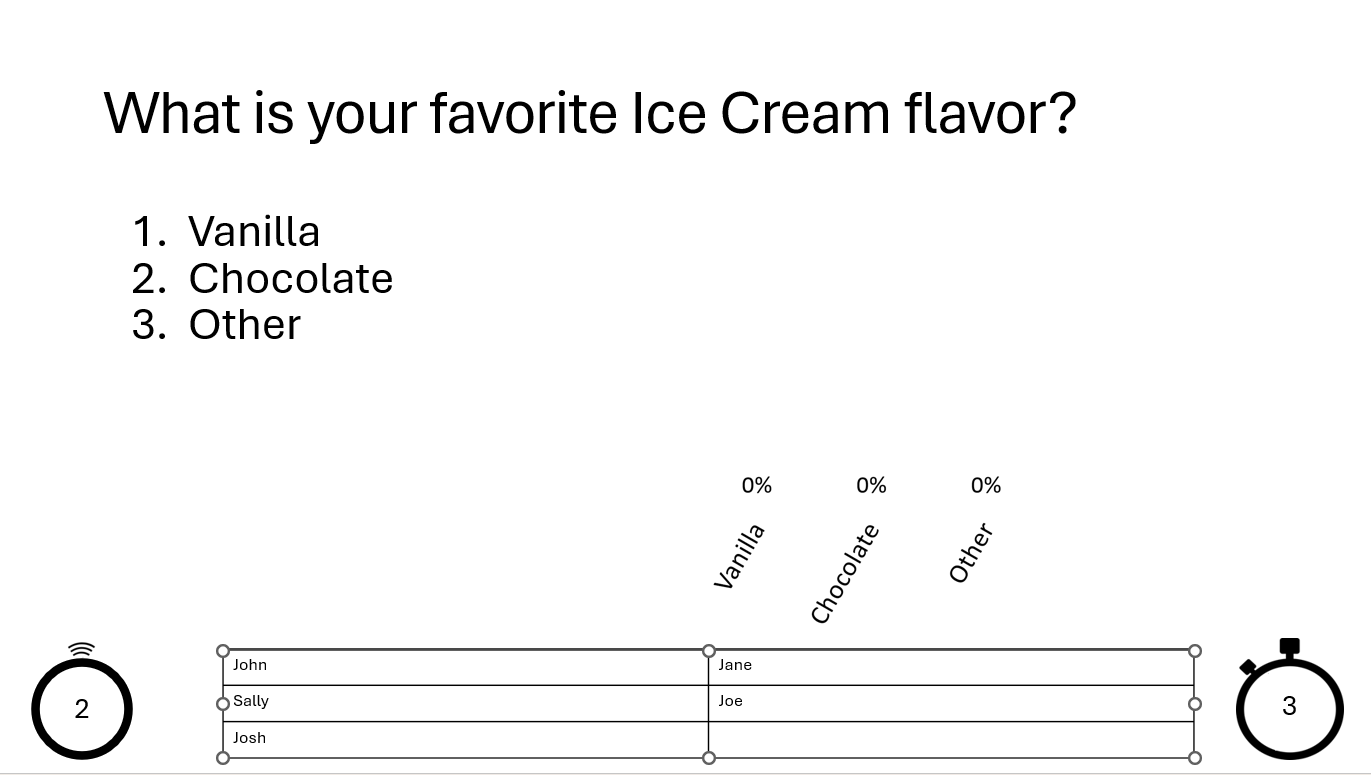
I will open up the vote, and you will notice the grid filling as I cast votes. You can see the results on the grid as well as the chart after I close the vote.
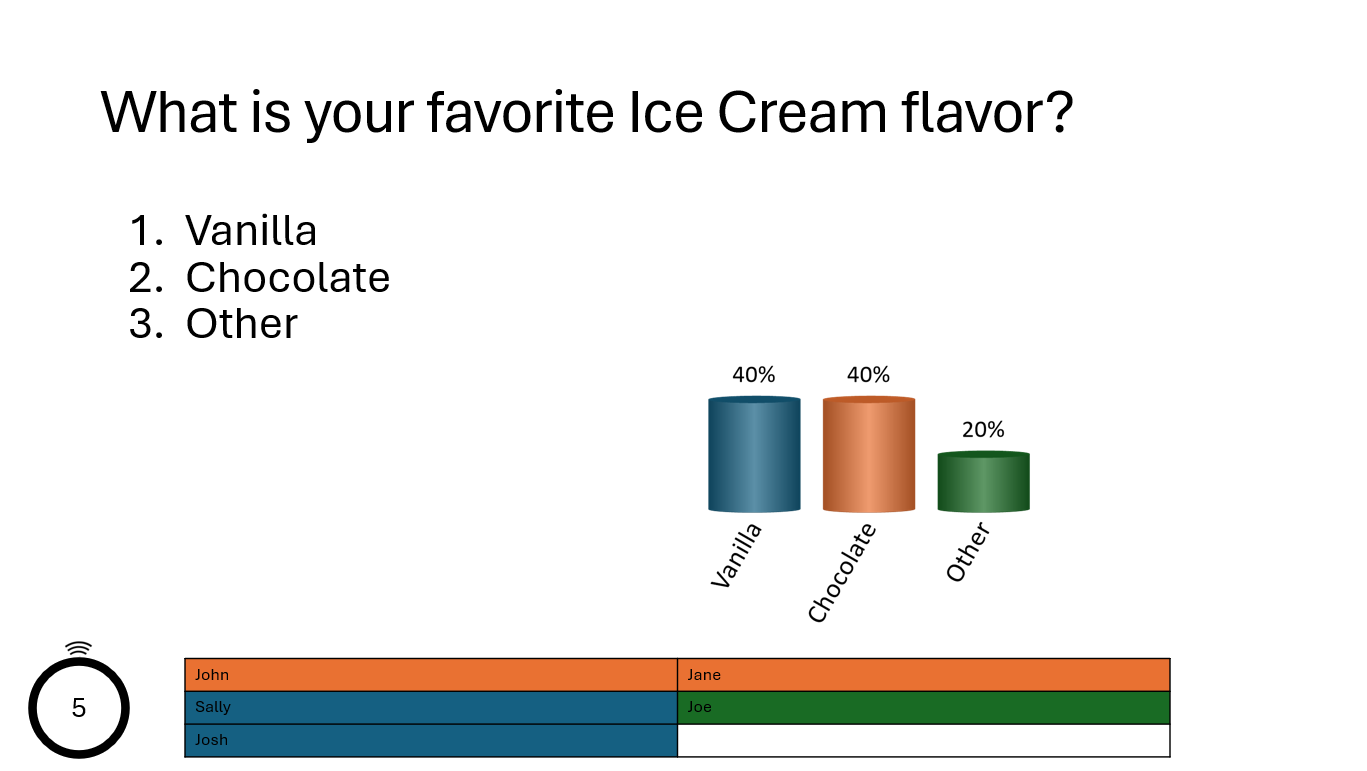
If you wish to get rid of the grid at any point, right-click on the grid lines, and select the cut option.
YOUTUBE TUTORIAL
Was this article helpful? Please leave your feedback below.
Was this article helpful?
That’s Great!
Thank you for your feedback
Sorry! We couldn't be helpful
Thank you for your feedback
Feedback sent
We appreciate your effort and will try to fix the article