PROBLEM
It may be helpful to create a test vote, to validate that all of the keypads are working and to encourage confidence amongst the audience.
SOLUTION
When you are ready to create the test vote, go to the settings page in EZ-VOTE Connect. Select the connect icon from the base settings on the right side to connect to your receiver. After connecting to the base, ensure that the keypad range and base ID reflect your desired parameters. If you are experiencing issues when attempting to connect your base, you may want to refer to this article. The base settings should look something like the picture displayed below.
BASE SETTINGS
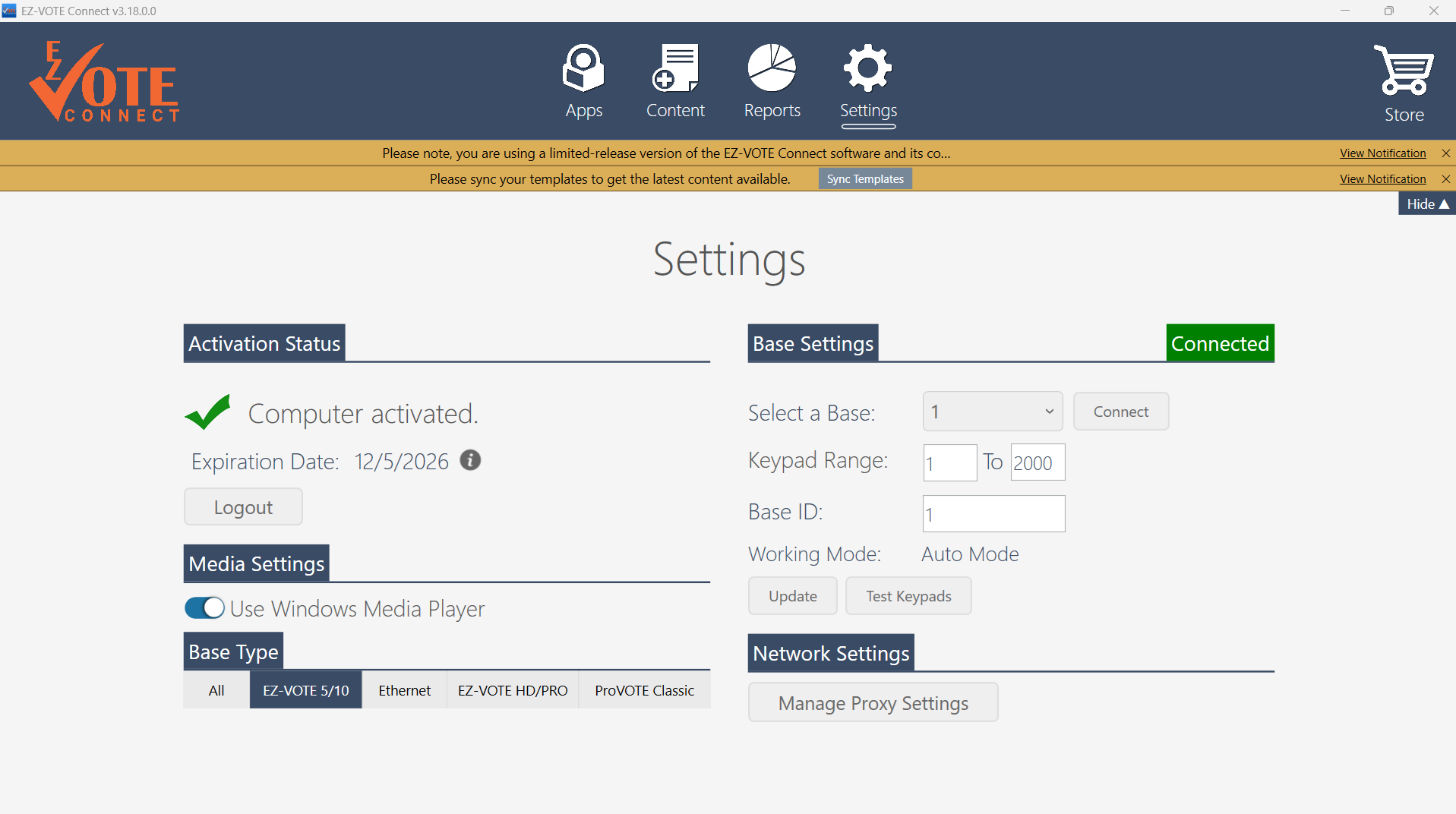
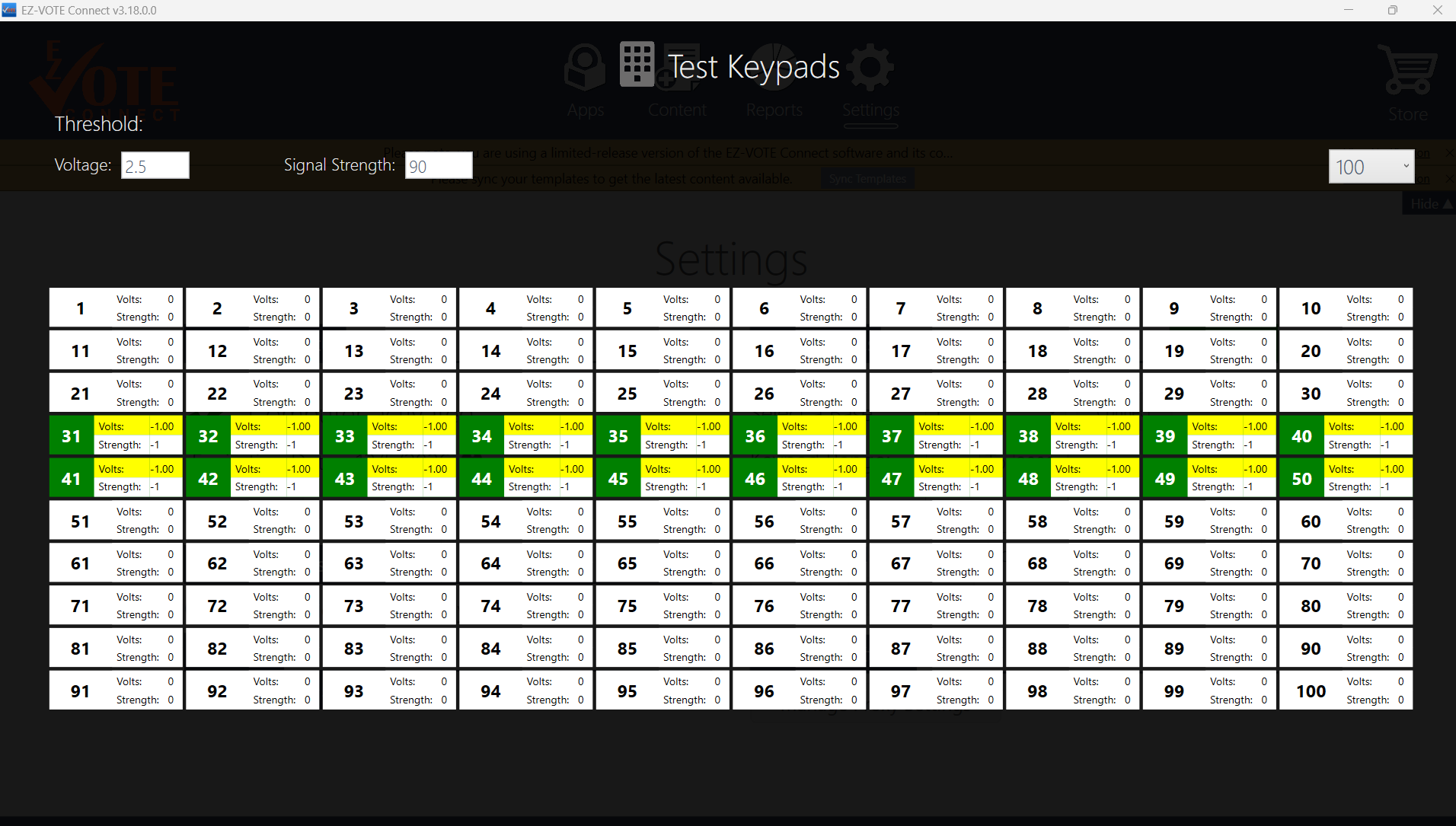
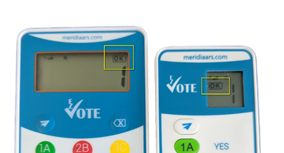
Now that you have successfully connected, you may click on the test keypads button near the bottom right. This button will bring up a new window with a grid showing keypad IDs. At the top left, you may adjust the threshold for the voltage and the signal strength needed for the keypad to register on the grid. The dropdown menu on the top right corner will adjust the number of keypads displayed on the grid, with options ranging from the first 100 keypads to the first 1000 keypads. When you are ready, press any button on the keypads that you wish to test. After pressing the button, you should see an "OK" displayed on the LED screen, and the keypad ID associated with the keypad should illuminate green on the grid. In the window shown below, you can see that I successfully tested keypads 31 through 50.
TEST KEYPADS WINDOW
KEYPAD DISPLAY
YOUTUBE TUTORIAL

RELATED ARTICLES
How to Create a Test Vote in TownVOTE
Voting and Audience Response Checklist
Base Connection Issues in TownVOTE/EZ-VOTE Connect
Was this article helpful? Please leave your feedback below.
Was this article helpful?
That’s Great!
Thank you for your feedback
Sorry! We couldn't be helpful
Thank you for your feedback
Feedback sent
We appreciate your effort and will try to fix the article