PROBLEM
You must direct users to join a CloudVOTE online voting session, either on the mobile app or through a web browser.
SOLUTION
First, make sure that you have set up a join code for users to enter when arriving to your session. You also want to make sure that the session is set up to your preferences. If you want your participants to join the session via the mobile app, they can find the "Meridia MVOTE" app in the IOS or Android Appstore. Alternatively, you can use these links:
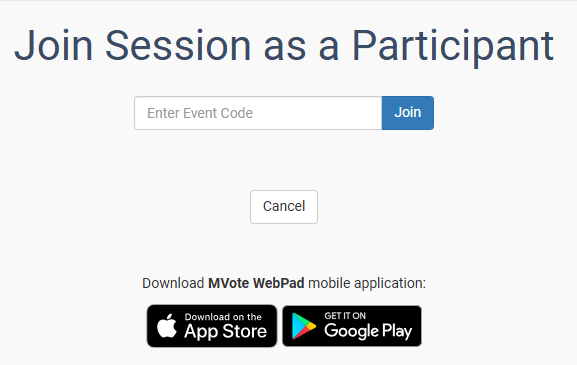
If your users are using their web browser, then they should go to join.vote on their phone, tablet or computer.
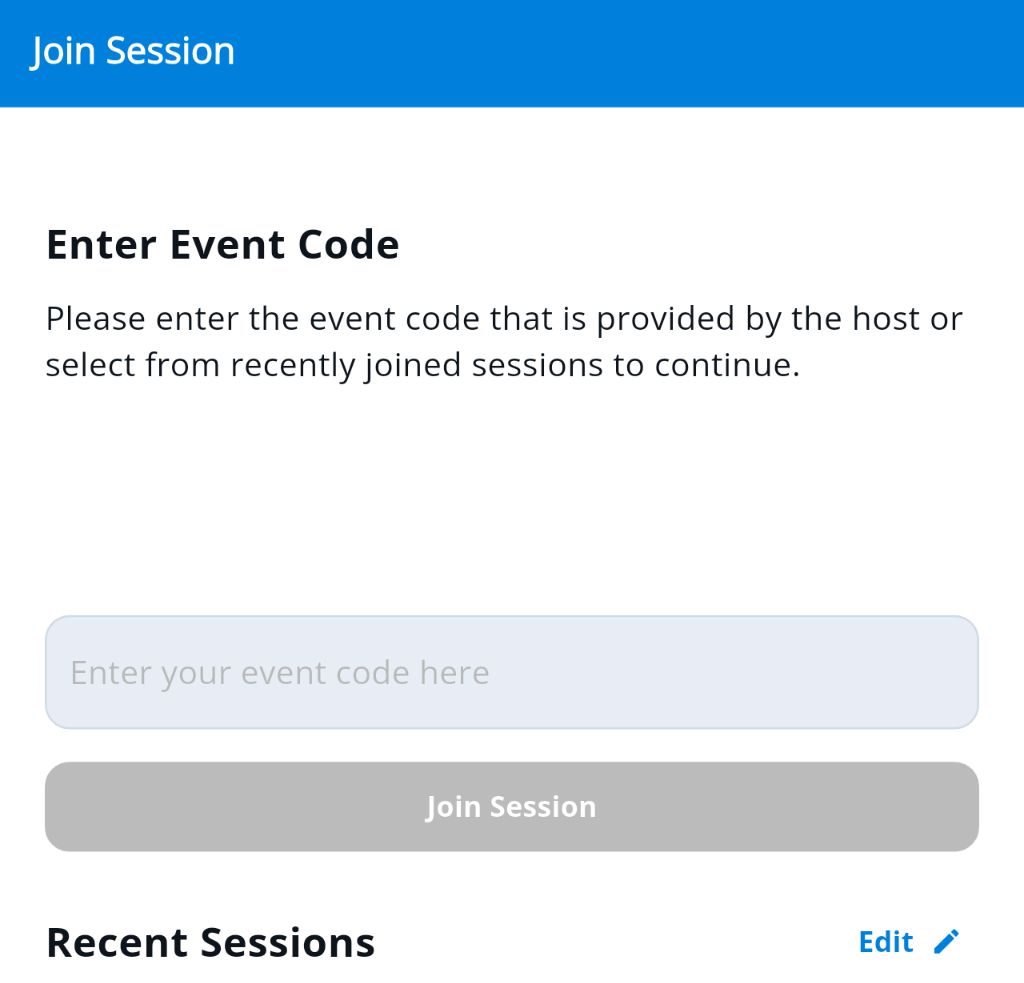
After opening the app or webpage, the user will be prompted to enter the event code, also referred to as a join code.
MOBILE APP VIEW
WEBPAGE VIEW
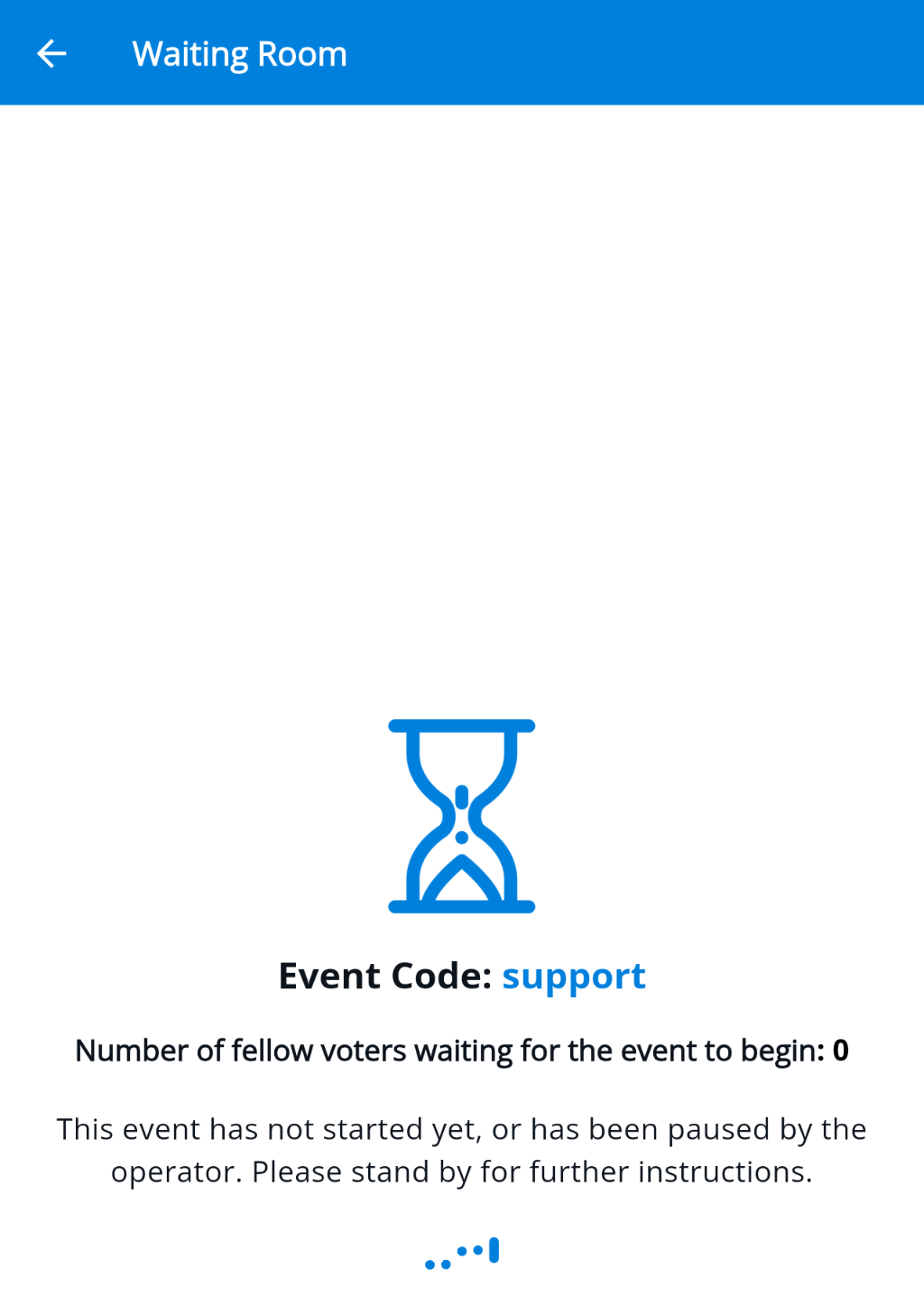
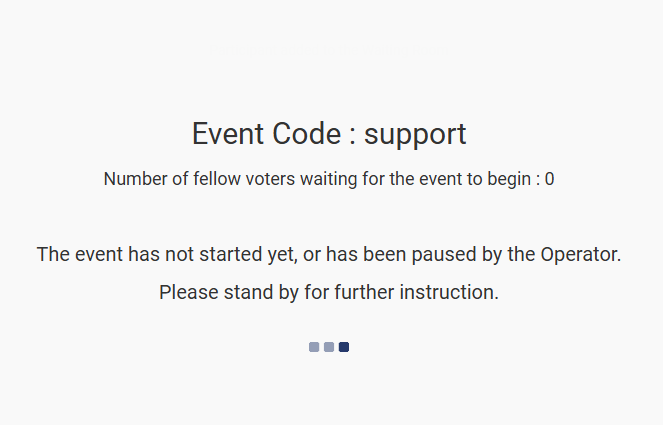
When you correctly input the join code, you will be redirected to a waiting room (shown below) if the session is not active.
MOBILE APP VIEW
WEBPAGE VIEW
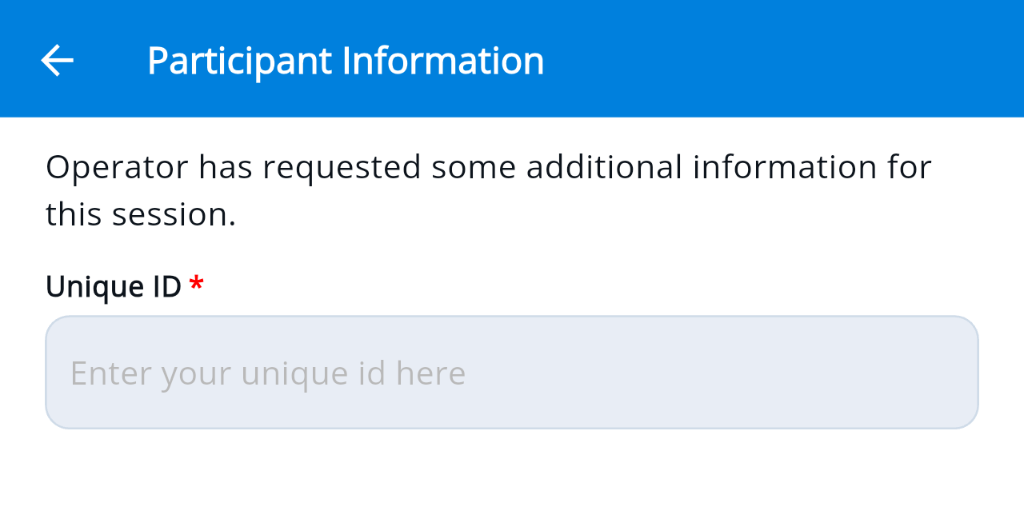
If the session is active, you will move onto the next step, which is to enter your personal information. The CloudVOTE administrator may set up the personal identification field for the user to enter their name, unique ID, etc.
MOBILE APP VIEW
WEBPAGE VIEW

After correctly entering in their personal information, the user will be redirected to a blank screen with the Meridia logo if there is not an active vote. If the vote is active/open, then the user will see the topic and answer choices and will be able to cast their vote.
Was this article helpful? Please leave your feedback below
Was this article helpful?
That’s Great!
Thank you for your feedback
Sorry! We couldn't be helpful
Thank you for your feedback
Feedback sent
We appreciate your effort and will try to fix the article