PROBLEM
When using the projector view, you may choose whether or not you want the audience to see the result of the vote immediately after closing the vote or delay the results until you choose to display them using the auto preview toggle.
SOLUTION
Navigate to the sidebar, where you can view the general settings. Note that this solution only works when using the projector view. You will see the auto preview toggle three rows down (pictured below). Since the auto preview toggled is switched on, the operator will display the results to the audience automatically in the projector view as soon as the vote is closed.
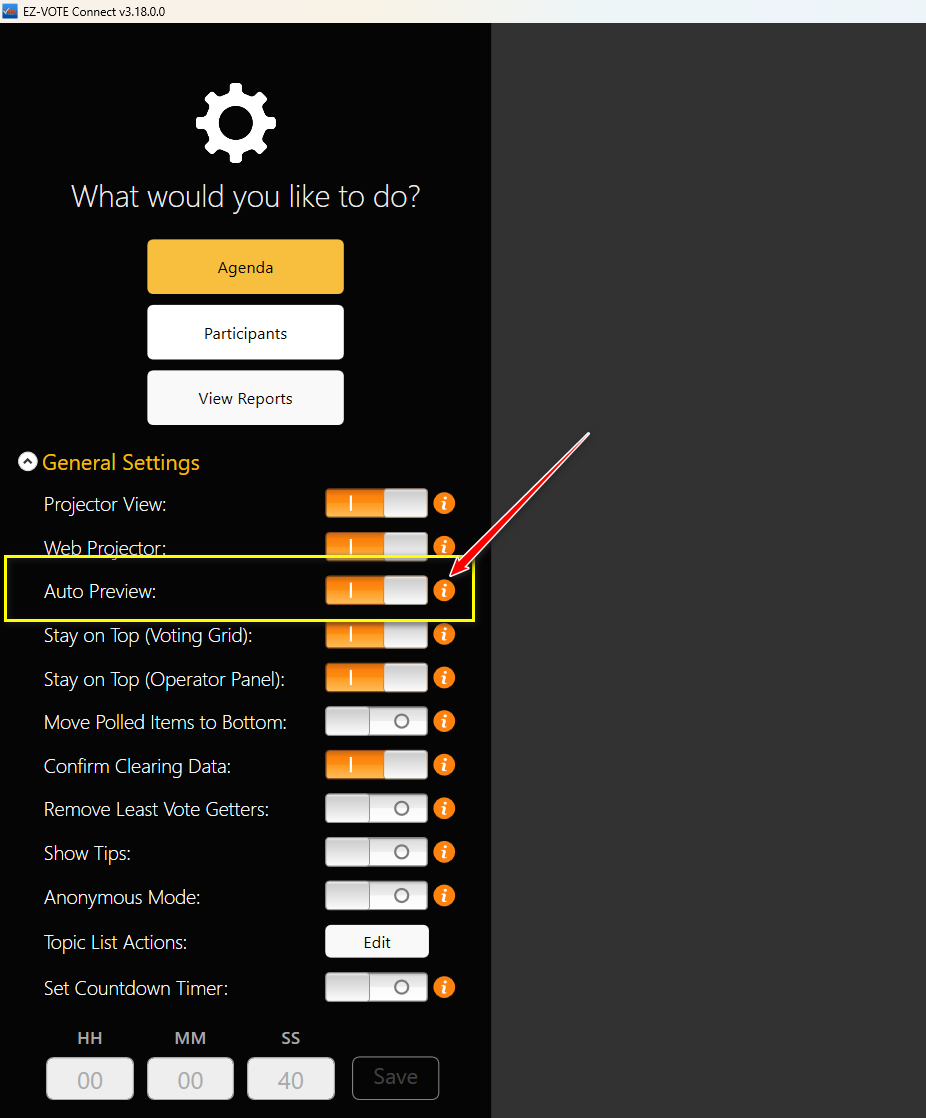
If the operator wishes to show the result of the vote manually, they will leave the auto preview toggle turned off. Then, the operator can still see the results in the Operator Panel window in real time but must explicitly click the "review" button on the agenda page within the action bar on the right-hand side in order to display the results to the audience. After displaying the results, they can be hidden again by selecting the "hide preview" button on the action bar which will then show the holding screen.
ACTION BAR

REVIEW

HIDE PREVIEW

YOUTUBE TUTORIAL

Was this article helpful? Please leave your feedback below
Was this article helpful?
That’s Great!
Thank you for your feedback
Sorry! We couldn't be helpful
Thank you for your feedback
Feedback sent
We appreciate your effort and will try to fix the article