PROBLEM
When attempting to connect your base/receiver in the TownVOTE voting and elections application, you cannot connect successfully.
SOLUTION
Check the settings in the EZ-VOTE connect application. This is the app where you can configure the base settings, as well as open the Town VOTE voting and elections application.
Follow these steps to troubleshoot your base connection:
- Make sure that your base is correctly switched to USB or Ethernet (NET) mode on the physical switch on the back of the receiver. Whichever mode you are using, make sure that the intended mode is selected within the EZ-VOTE Connect application as well. You can find the base type settings on the bottom left side of the EZ-VOTE Connect settings page. If you want to connect the receiver in USB mode, select the EZ-VOTE 5/10 base type, but if you wish to use ethernet, select the "Ethernet" base type. If the modes do not match on the back of the receiver and within the toolkit app, then the base will not connect. Select the connect button on the base type page when you are ready to connect.
USB VS NETWORK SWITCH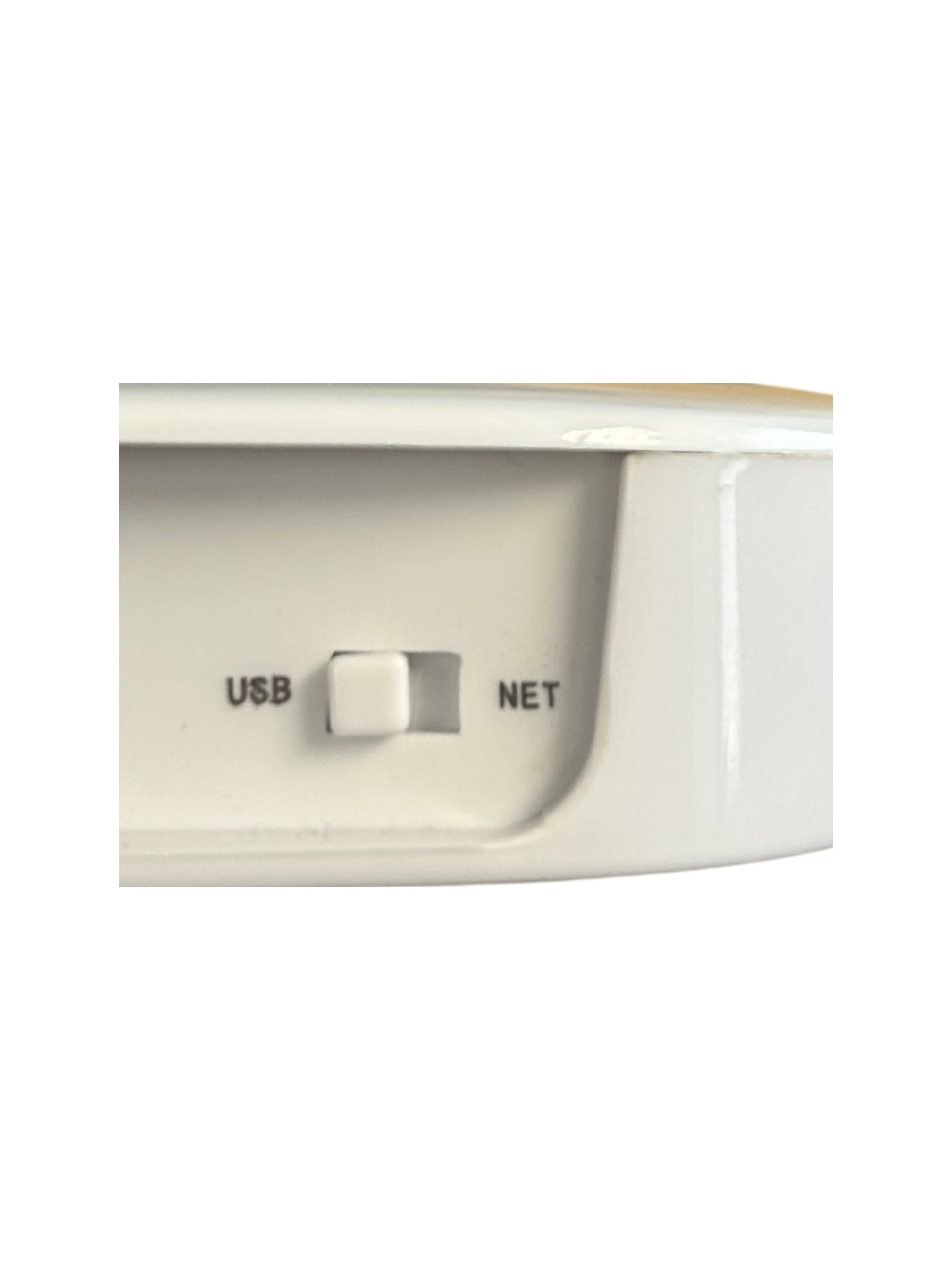
BASE TYPE SETTINGS

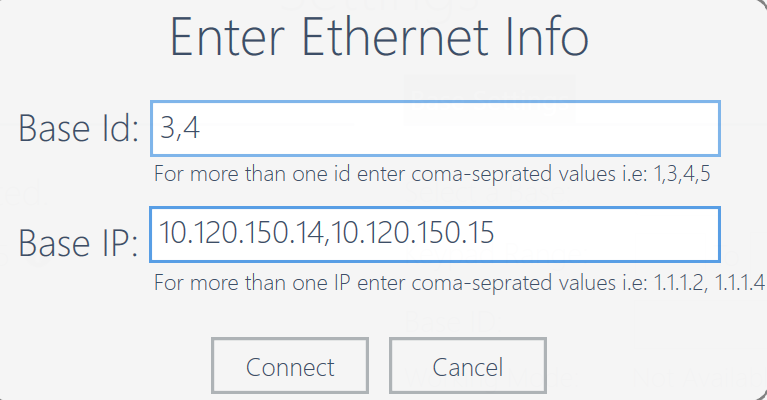
- IF USING ETHERNET MODE: The user will be prompted with the ethernet settings popup menu when selecting the ethernet base type. Make sure that the correct IP address is specified within the "Base IP" field. If you are using multiple bases, you must input each IP address in the same position as they appear in the base ID field above. For example, if the base ID 1 is the first to appear on the list, then the first IP address below should be the IP address of the first base. In the example below, the IP address for base 3 would be the first number in the base IP field; 10.120.150.14 and the IP address for base 4 would be 10.120.150.15.
ETHERNET SETTINGS
- Next, if you have confirmed that your base connection modes match on the back of the receiver as well as within the EZ-VOTE Connect application, check the blue lights on the front of the receiver. When you first plug the receiver in, it should show all six LED lights flash at once. Then, the receiver will settle on showing just the two blue LED lights at the top, with the topmost light blinking intermittently. If you do not see these light, there might be an issue with your base or the cables connecting the base to your computer.
CONNECTED RECEIVER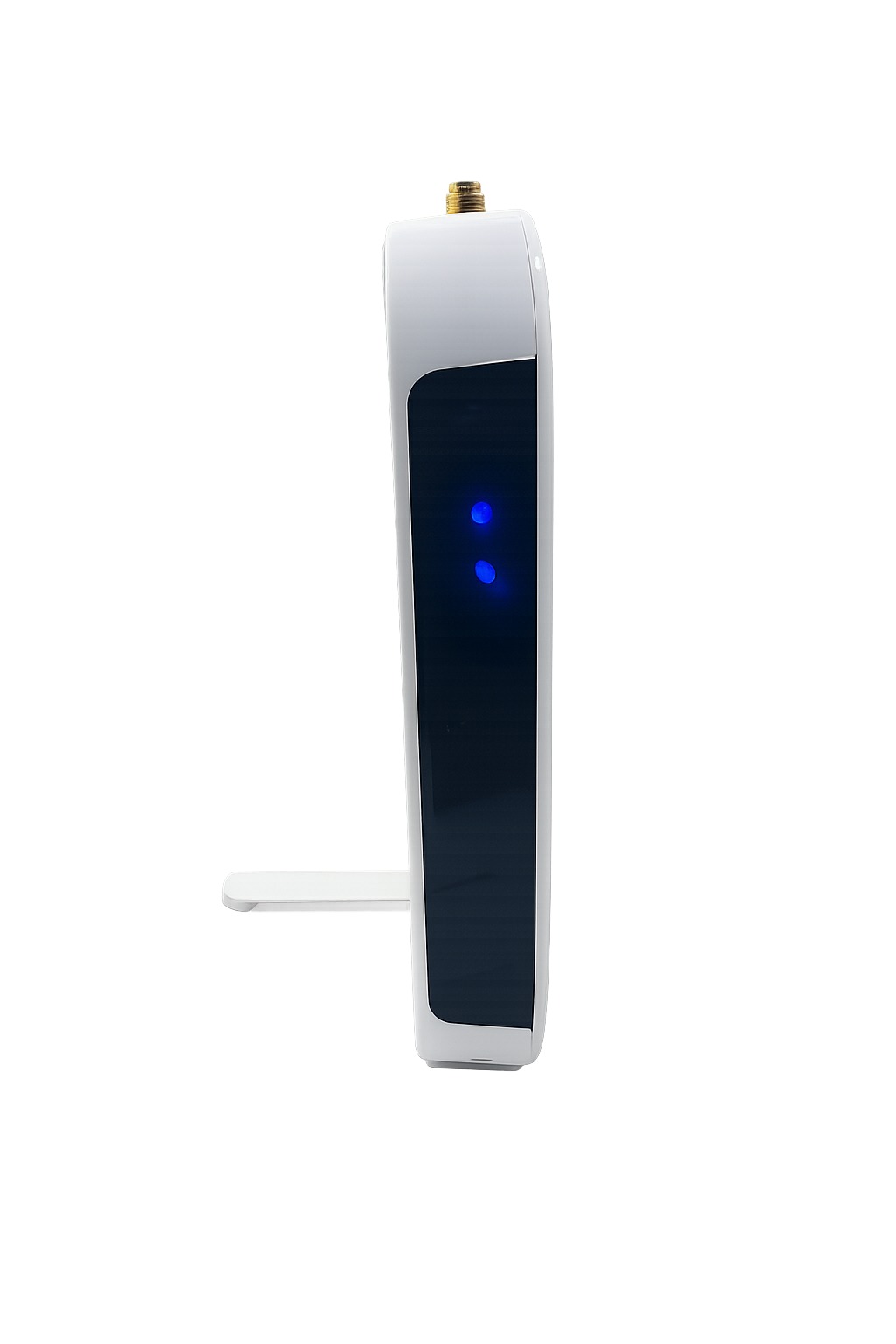
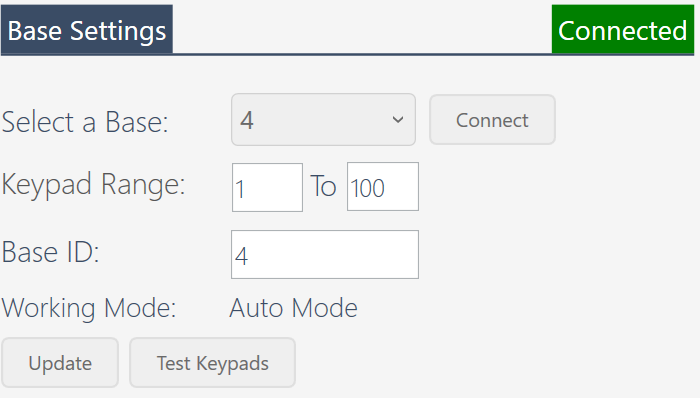
- If your receiver is showing two lights and the modes match on the back of the receiver as well as toolkit, then you should check the Base settings in EZ-VOTE Connect. Selecting the connect icon on the right side will start connecting the receiver to the computer. When successfully connected, the base id will appear in the "select a base" field and if you are using multiple bases, use the dropdown menu to toggle between them. You may change the keypad range here, which will decide which keypad ID numbers can vote on each receiver. If you wish to change a base's ID number, type a new number into the base ID field. Make sure that you select the update icon to save your changes. The auto mode working mode means that the receiver will receive signal from all of the keypads within the keypad range. If your receiver is set to a match mode working mode, then only the keypads matched to the receiver will cast signal. If you have more questions about the working mode, contact us at support@meridiaars.com or visit this article on how to match keypads to a receiver.
BASE SETTINGS
- Hopefully after these steps you have successfully connected your base in the toolkit application. If you are still experiencing connection issues, or if you need a link to download our toolkit application, please contact us at support@meridiaars.com.
RELATED ARTICLES
Base Connection Issues in Toolkit app
Keypads Are Not Working/Voting or Only Limited Number (5) of Clickers Work
EXTended Range Base Doesn't (Cannot) Connect
2.4 GHz Interference and Its Effect on EZ-VOTE Voting Systems
Was this article helpful? Please leave your feedback below
Was this article helpful?
That’s Great!
Thank you for your feedback
Sorry! We couldn't be helpful
Thank you for your feedback
Feedback sent
We appreciate your effort and will try to fix the article