PROBLEM
Sometimes, you may have two different types of keypads, and you need both of them to work for your meeting.
SOLUTION
MERIDIA currently carries four different versions of the EZ-VOTE keypad, compatible with the EZ-VOTE Connect Suite, including the TownVOTE (Voting and Elections) app and the EZ-VOTE PowerPoint plug-in.
The keypad models are: 5, 5S, 10 and 10S models. The number represents the number of buttons on the keypad, and the "S" is in reference to the new "S" communications protocol we implemented in the spring 2023. Each keypad type is pictured below:
EZ-VOTE 5 | EZ-VOTE 5S |
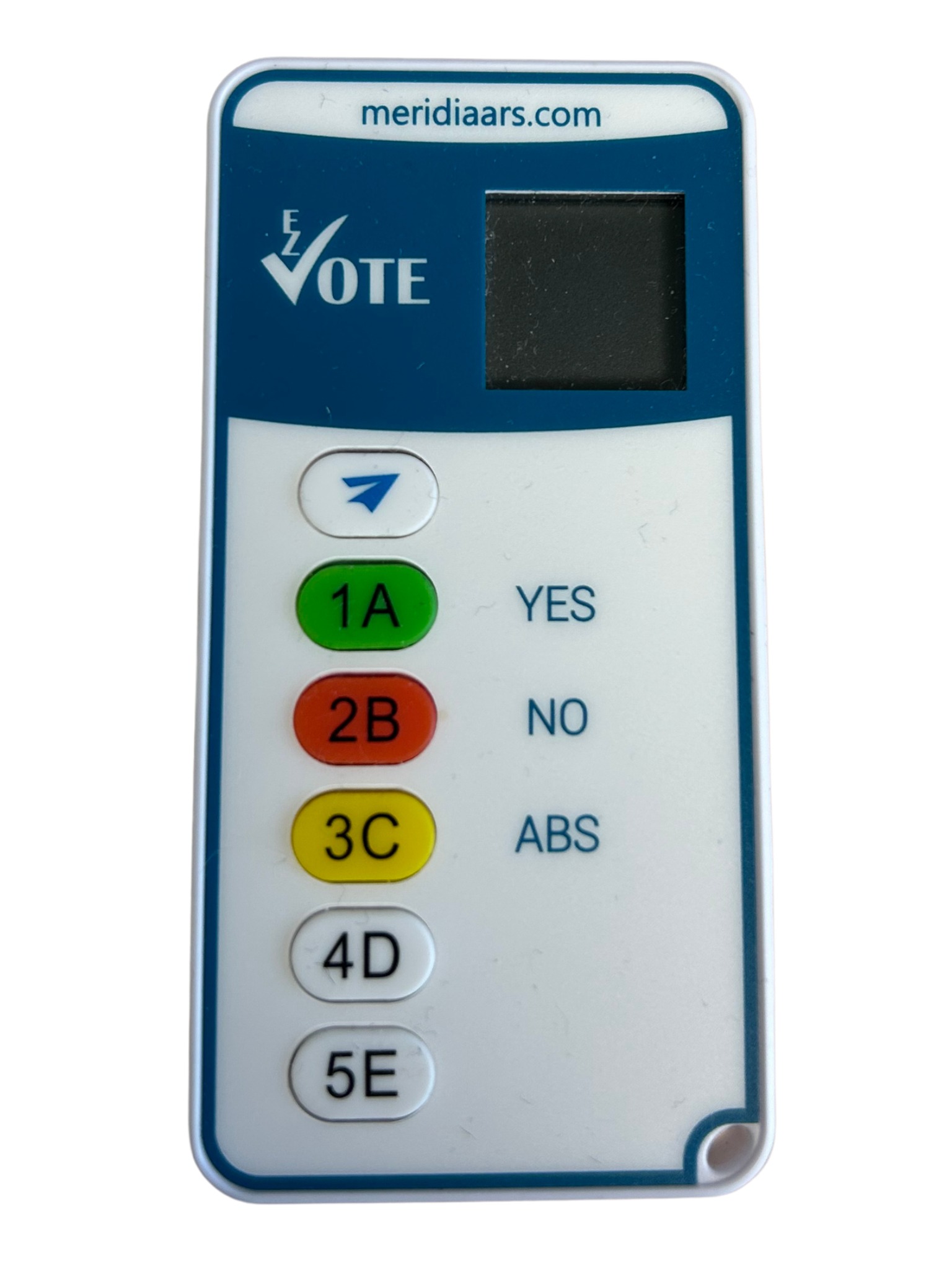 | 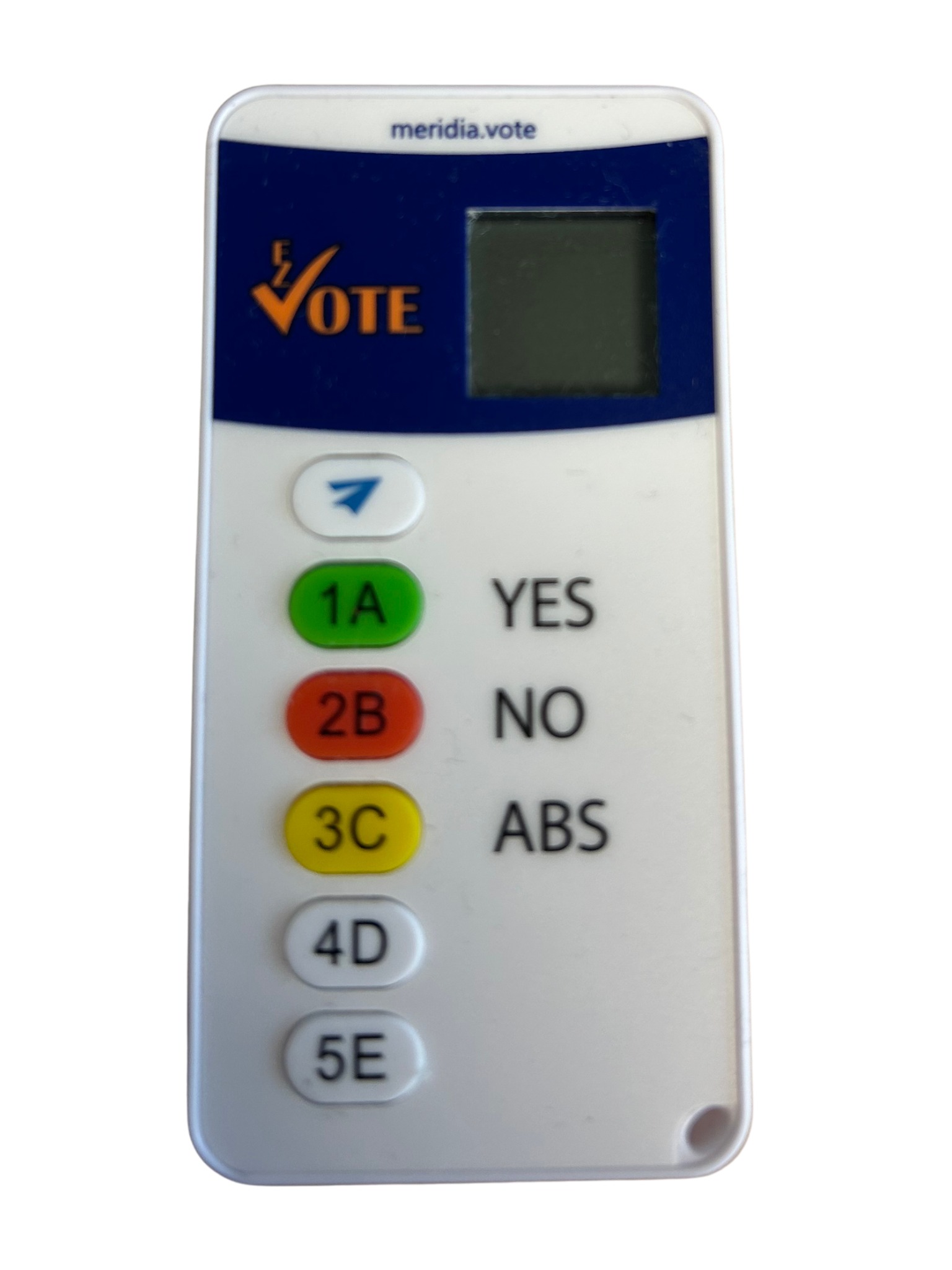 |
EZ-VOTE 10 | EZ-VOTE 10S |
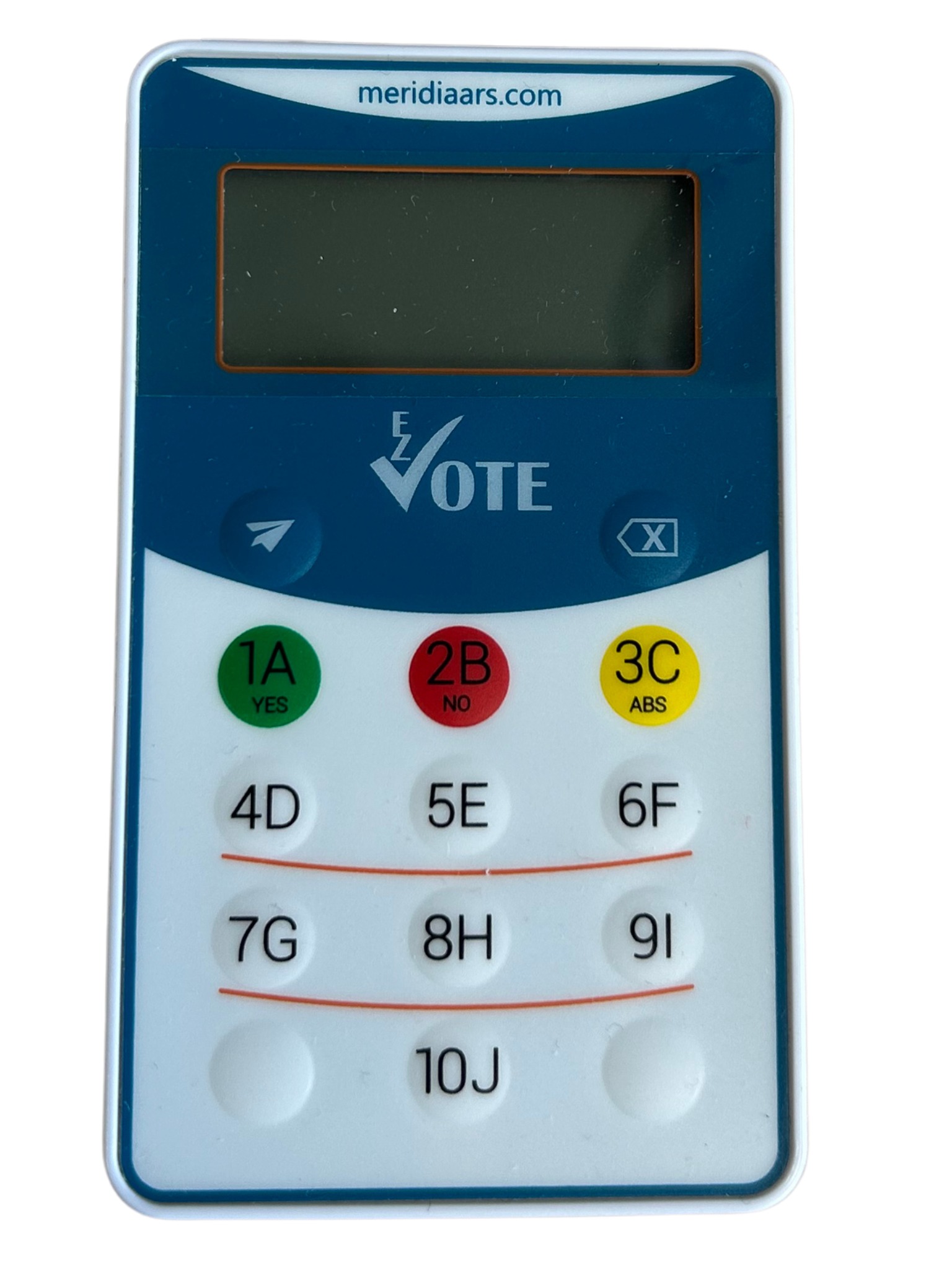 | 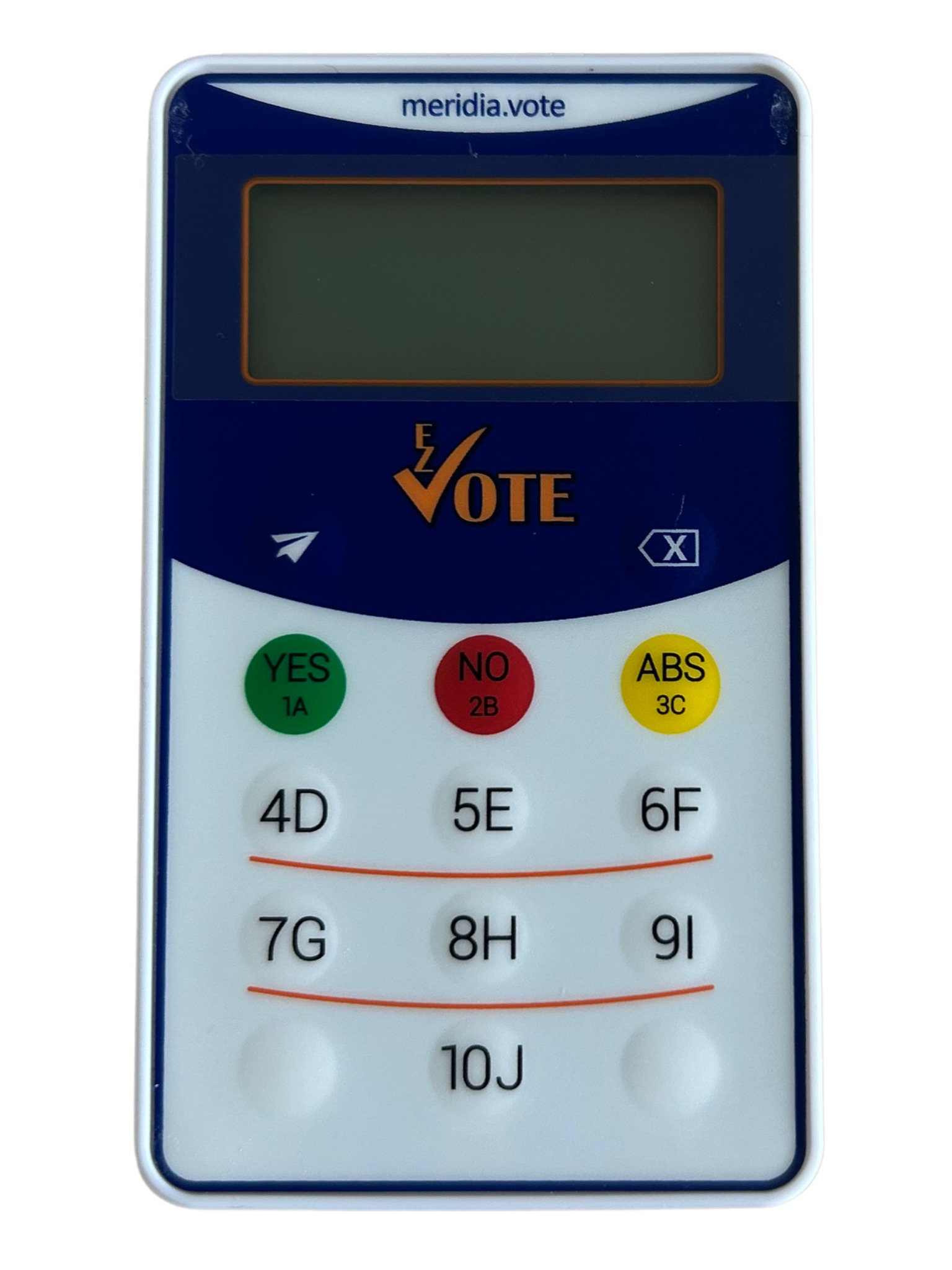 |
You can notice the darker blue color of the background and orange "EZ-VOTE" logo associated with the "S" version of the keypads, but you can also identify the keypad type by the serial number sticker on the back. If there is a custom membrane obscuring the face of the keypad, this will be the easiest way to identify the keypad type.
| CUSTOM MEMBRANE | BACK STICKER |
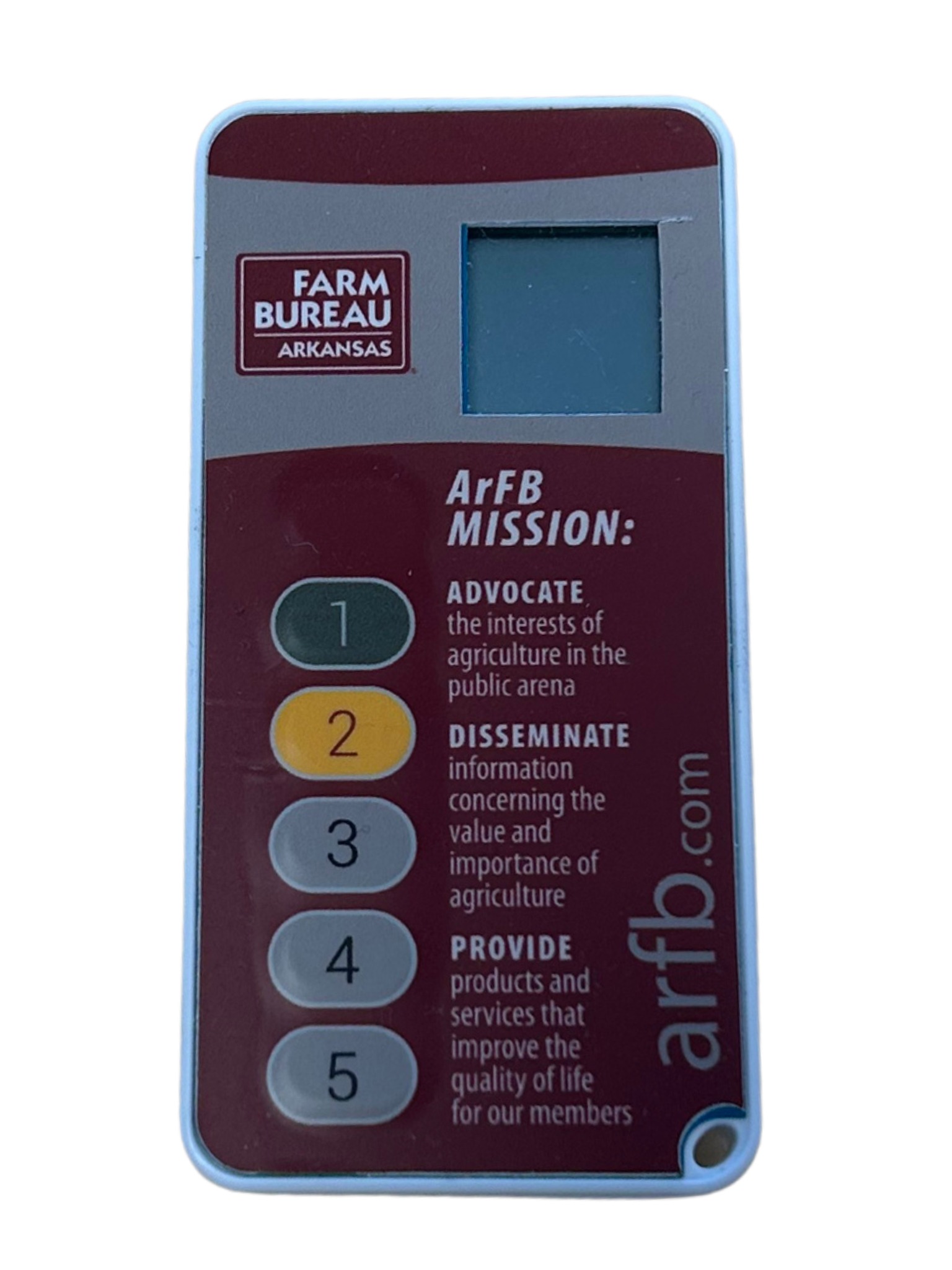 | 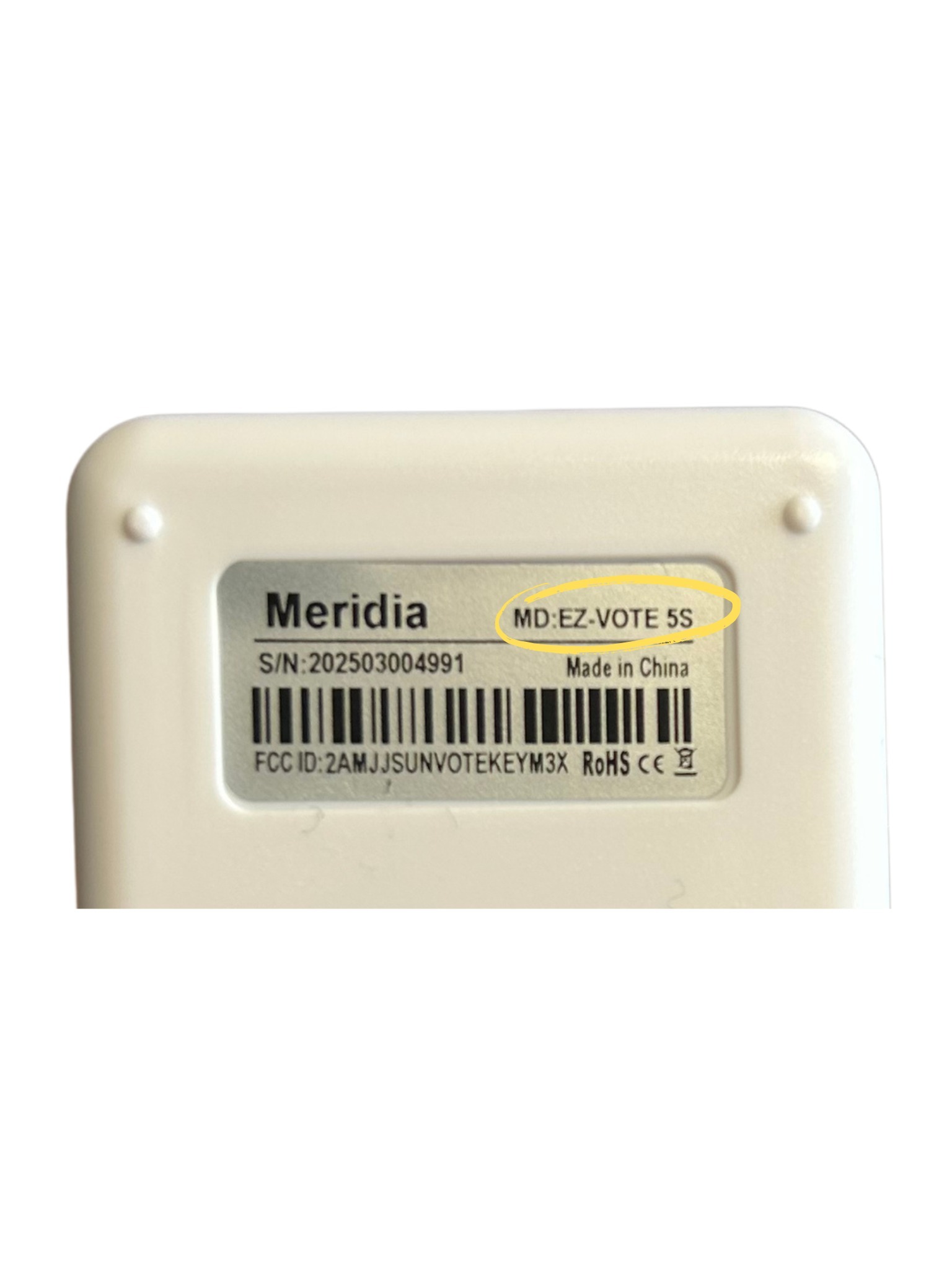 |
Now that you can identify the keypad type, you must know which bases are compatible with each keypad type. The 5 and 10 keypad types work with the older "T" protocol base receivers (EA4000T).
By contrast, the 5S and 10S keypads run off the "S" protocol, so you will need an EXT-S base to collect votes from those keypads. The receivers appear the same, but you can tell which type of base they are by referencing the sticker on the side (pictured below).
| EA4000T | EXT-S |
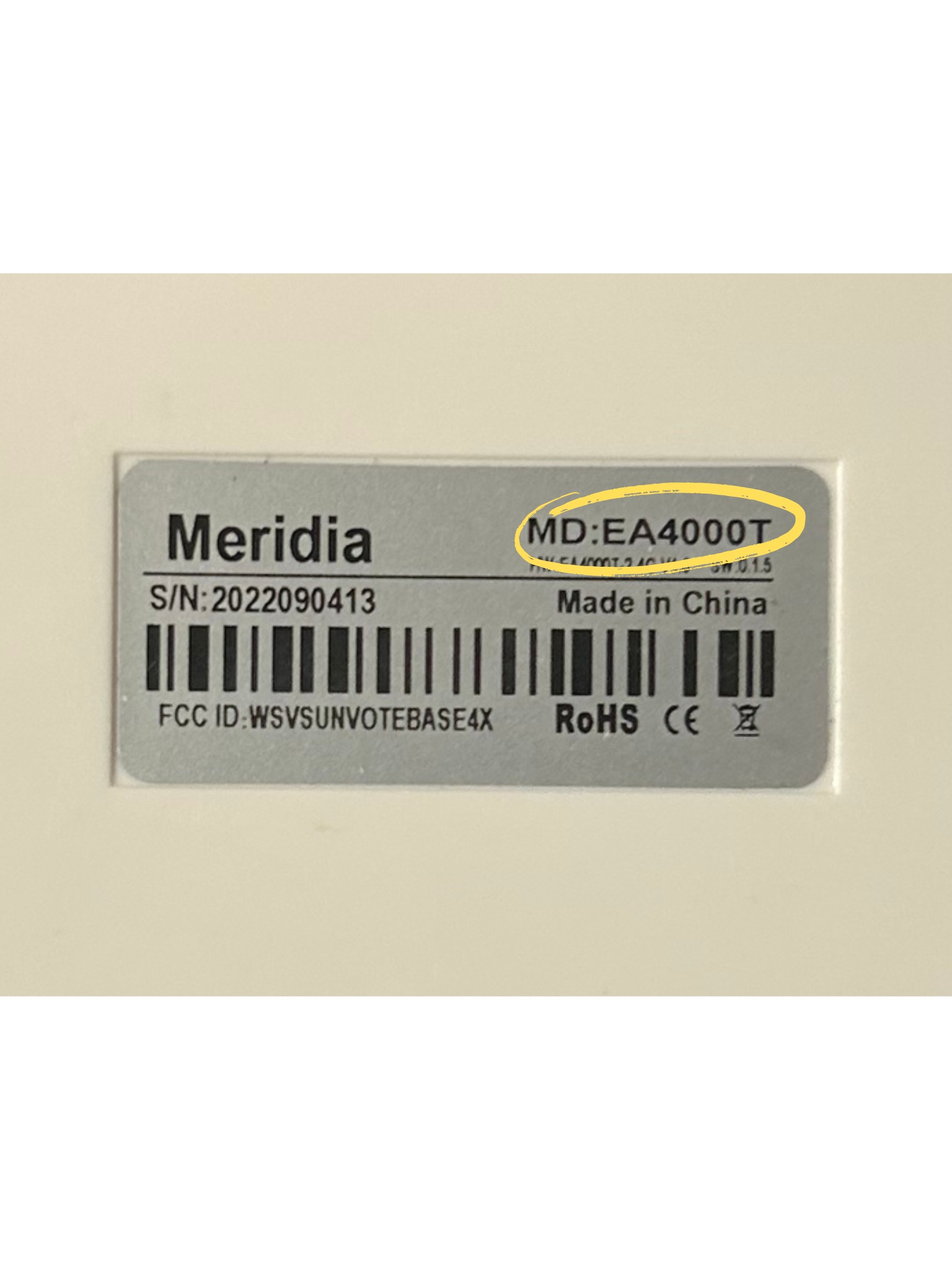 | 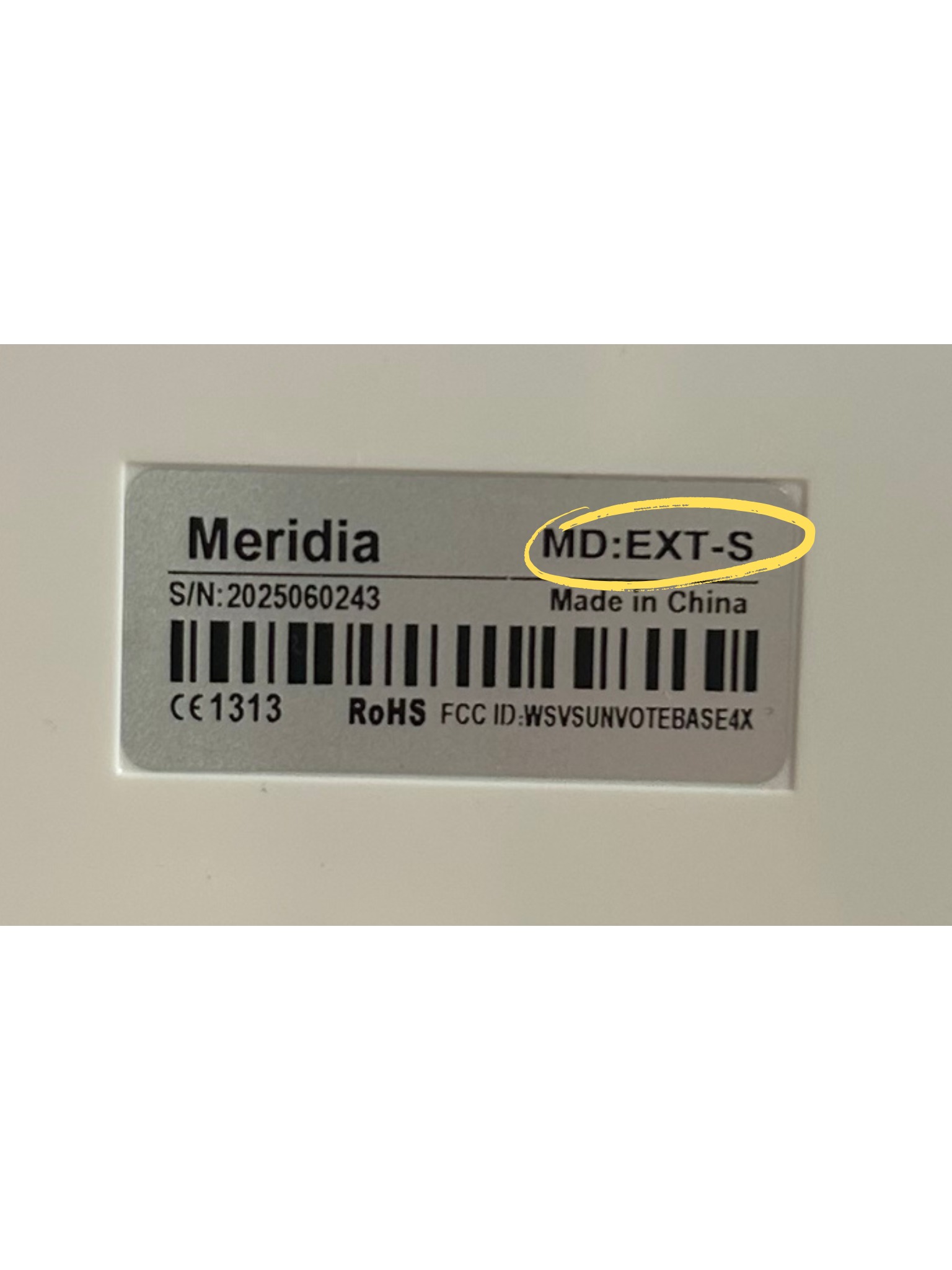 |
Once you have gathered the compatible keypads along with their bases, check to make sure that the software and the hardware is set up correctly. If you are using multiple bases, you must make sure that the bases have separate Base IDs for both of them to be seen and connected by the computer.
You should see a green "2" in the Base Connection indicator (in the bottom-left corner on the TownVOTE Agenda page) to confirm that both bases are connected.
If you are still having issues connecting both bases, or need to change the Base ID on the base, refer to this article on Base Connectivity Issues With Multiple Bases.
Once your base receivers are set up, you need to make sure that the keypad range reflects all of your keypads, including all types of keypad models. For example, if you're planning on using keypads 1 - 500, your Keypad Range settings in the Connect app must be at least 1 - 500 or higher, and your Participant List (inside the TownVOTE app) must also be 1 - 500 or higher.
If you need assistance, reference this article on Utilizing and Customizing Participants in TownVOTE.
Was this article helpful? Please leave your feedback below.
Was this article helpful?
That’s Great!
Thank you for your feedback
Sorry! We couldn't be helpful
Thank you for your feedback
Feedback sent
We appreciate your effort and will try to fix the article