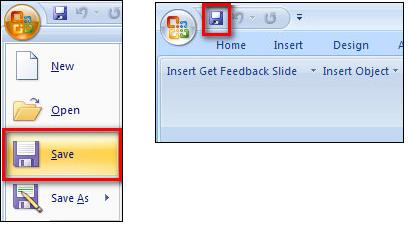
*Important - If you have data in your pptx. file that you want to keep, save it before continuing with the Clear Responses function. Do this by selecting Save under the Office Button or the Save icon in the Quick Access toolbar.
To Clear Responses, you must be in the Design Mode and click on the Clear Responses button on the Get Feedback toolbar.
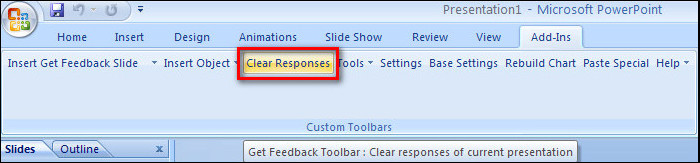
Since all the Get Feedback slides retain the data inside them, you need to perform a Clear Responses procedure in order to allow a new polling session to accept votes from the keypads.
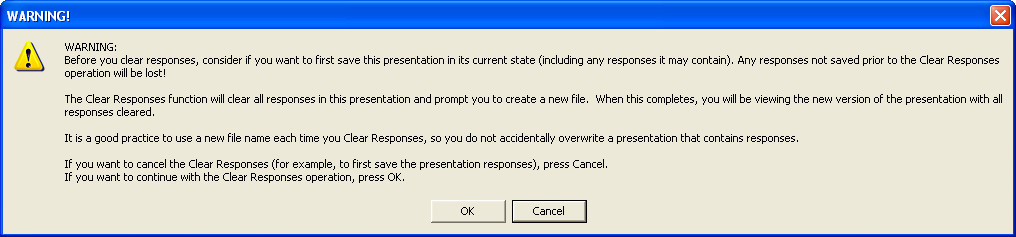
When you select Clear Responses, a warning window opens which basically tells you to save your pptx file before proceeding or it will be lost.
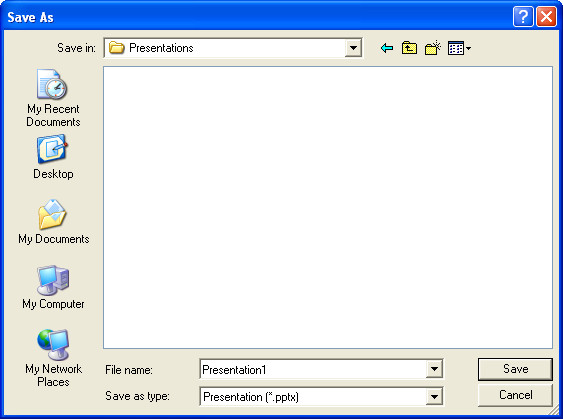
Hit OK and a Save As window opens. In this window enter a file name for the cleared pptx file that you will be opening. (Default name is "Presentation1")
To verify that your slides are still able to accept votes, go through your slide deck in Presentation Mode and see if the Get Feedback Control Bar shows the Polling Status as "Polling Open" (green).

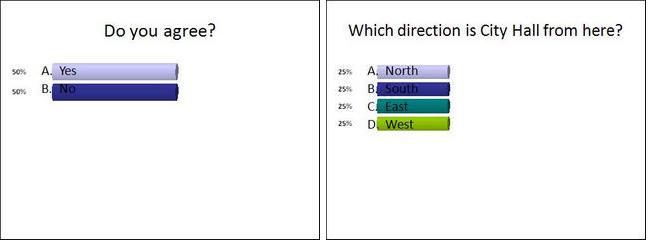
To visually determine if your slides are clear and ready to take votes again look at the number of answer choices and check if 100% is divided equally among the number of answers.
(ie. 2 choices = 50% for each answer. 4 choices = 25% for each answer.)
Also notice that the shown bar graphs are all of equal length.
The only time you don't need to do Clear Responses is when you opened polling on a slide, but did not receive any votes.
Did this article solve your issues? Please leave us feedback below.
Was this article helpful?
That’s Great!
Thank you for your feedback
Sorry! We couldn't be helpful
Thank you for your feedback
Feedback sent
We appreciate your effort and will try to fix the article