PROBLEM
You are trying to set up the TownVOTE software to include the correct participants in your meeting. Perhaps, you are trying to insert specific people's names as participants, or in other cases, participants may be assigned a keypad ID only to maintain anonymity.
SOLUTION
CREATING A PARTICIPANT LIST
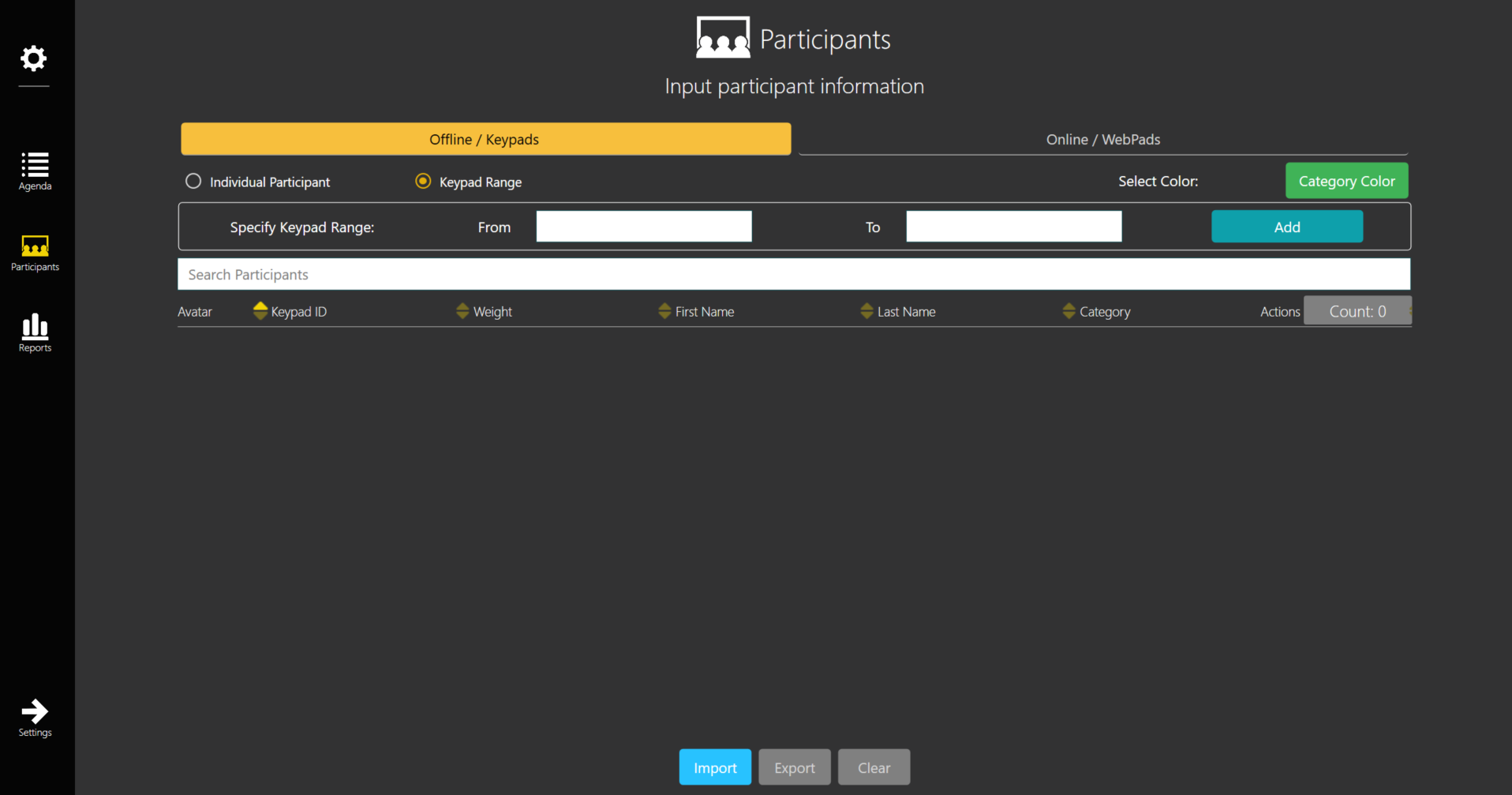
When you are ready to add participants to your session, navigate to the participants tab on the left-hand column. There are two menu options that can be seen at the top. You can either enter individual participants into the list, or you may select a keypad range. In order to set the keypad range, specify the keypad ID number range in the 'from' and 'to' fields. For example, if you set the range to include 1 to 500, the receiver will only receive votes from clickers 1 to 500. In some instances, such as a Representative Town Meeting in Massachusetts, might require individual participants. With the individual participant option selected, you will be able to type the first and last name of the individual, as well as the keypad ID you wish to be associated with that individual. There is also an optional 'category' field where you may enter information such as the participant's district. Once the information is complete, pressing 'add' will put the individual participant into the list. Once you have set up your participant list, you may sort by each category and doing so will adjust how the participants are displayed on the participant grid. When you have completed your participant list, you may export it as a .csv file by selecting the export button at the bottom of the page. After clicking the export button, you will be prompted with a "save as" popup menu, where you can save the file for later usage.
IMPORTING A PARTICIPANT LIST
You may want to import a participant list into TownVOTE to save yourself the time of creating one manually. Some meetings have a consistent group of members, so importing a participant list is a necessity which saves time for every meeting. Simply select the import option at the bottom of the participant's page and select the file you wish to import into TownVOTE. If you receive an error message, you may have the .csv file open on your computer and will have to close out of the file to successfully import the list.
YOUTUBE TUTORIAL
RELATED ARTICLES
Checklist for Preparation for the Next Town Meeting
Error Opening a .csv File in TownVOTE
How to Set Up an Agenda in TownVOTE
Was this article helpful? Please leave your feedback below.
Was this article helpful?
That’s Great!
Thank you for your feedback
Sorry! We couldn't be helpful
Thank you for your feedback
Feedback sent
We appreciate your effort and will try to fix the article