PROBLEM
You must set up the agenda page so that you have agenda items to vote on during your meeting.
SOLUTION
CREATING AGENDA ITEMS
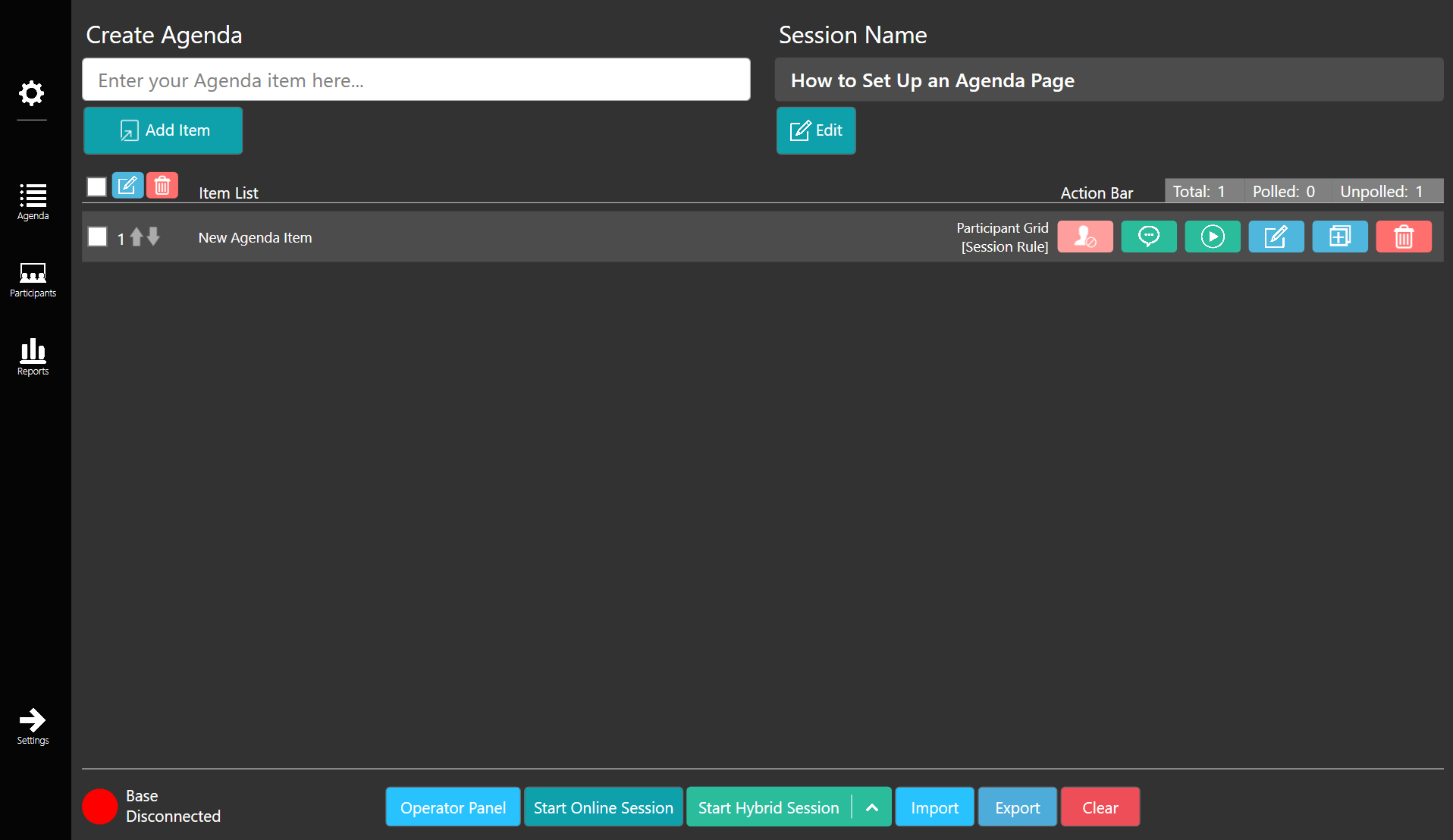
Start by naming your session by entering a session name in the top right and pressing save. Then, you can create your own agenda items to add to the item list in the create agenda field in the top left. Enter the name or description of your agenda item in the field and then select the add item icon to add the item to the item list below.
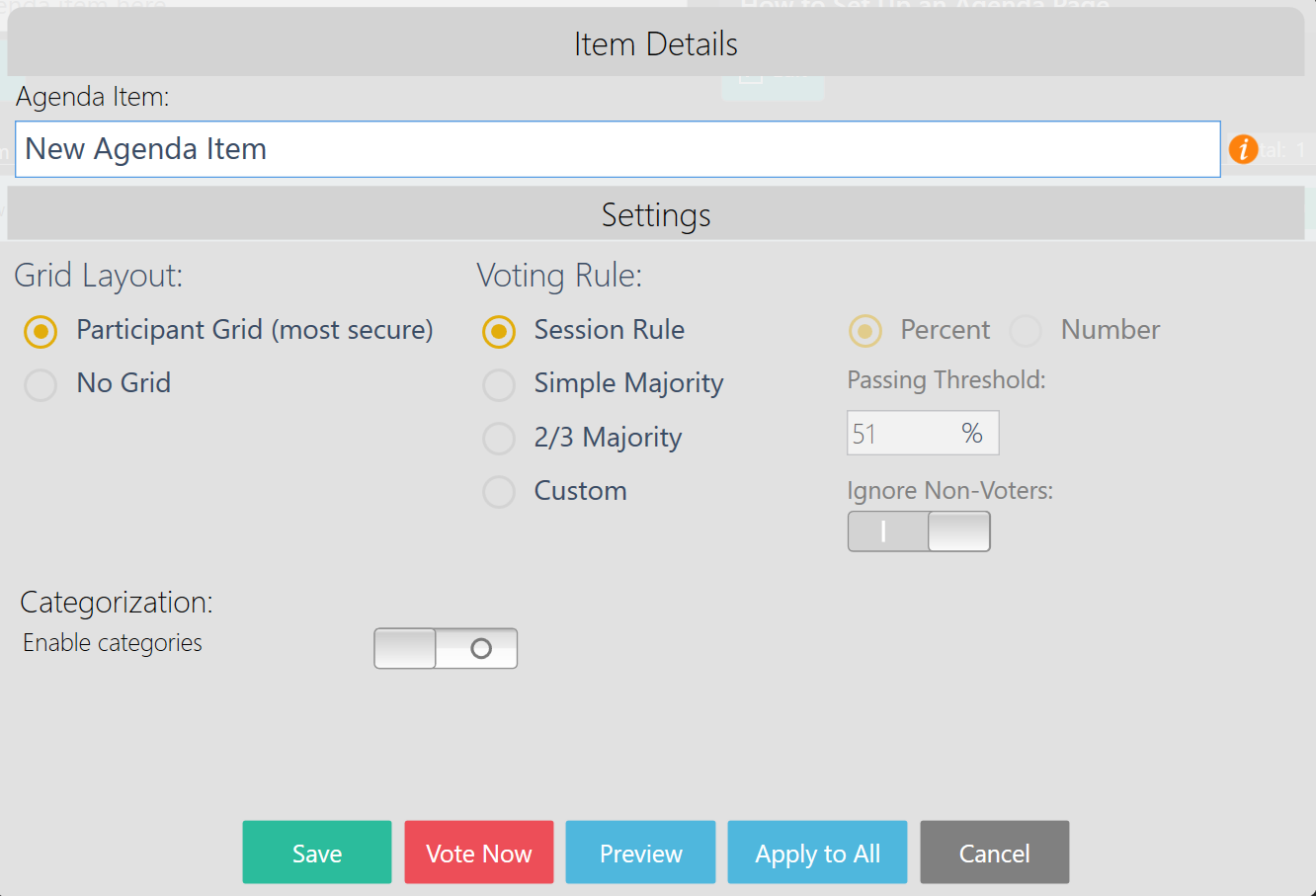
An item details screen will pop up after adding the item, where you can adjust the agenda item description, change the grid layout or voting rule. Save the details when you are finished, or you can select apply to all to adjust the details of all agenda items. Once the agenda item is added to the item list, you may press the duplicate topic button and edit topic buttons in the action bar on the right side. Sometimes it might be easier to duplicate the item and change the name to create a new item rather than add an item from the create agenda field in the top left. With multiple agenda items in the list, you may multiselect agenda items by checking the box to the left side of each item. This will allow you to quickly delete or edit multiple agenda items. You may also reorder the items by clicking the up and down arrows on the left side of each agenda item.
IMPORTING AND EXPORTING THE AGENDA
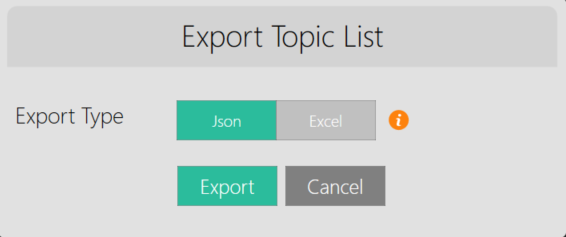
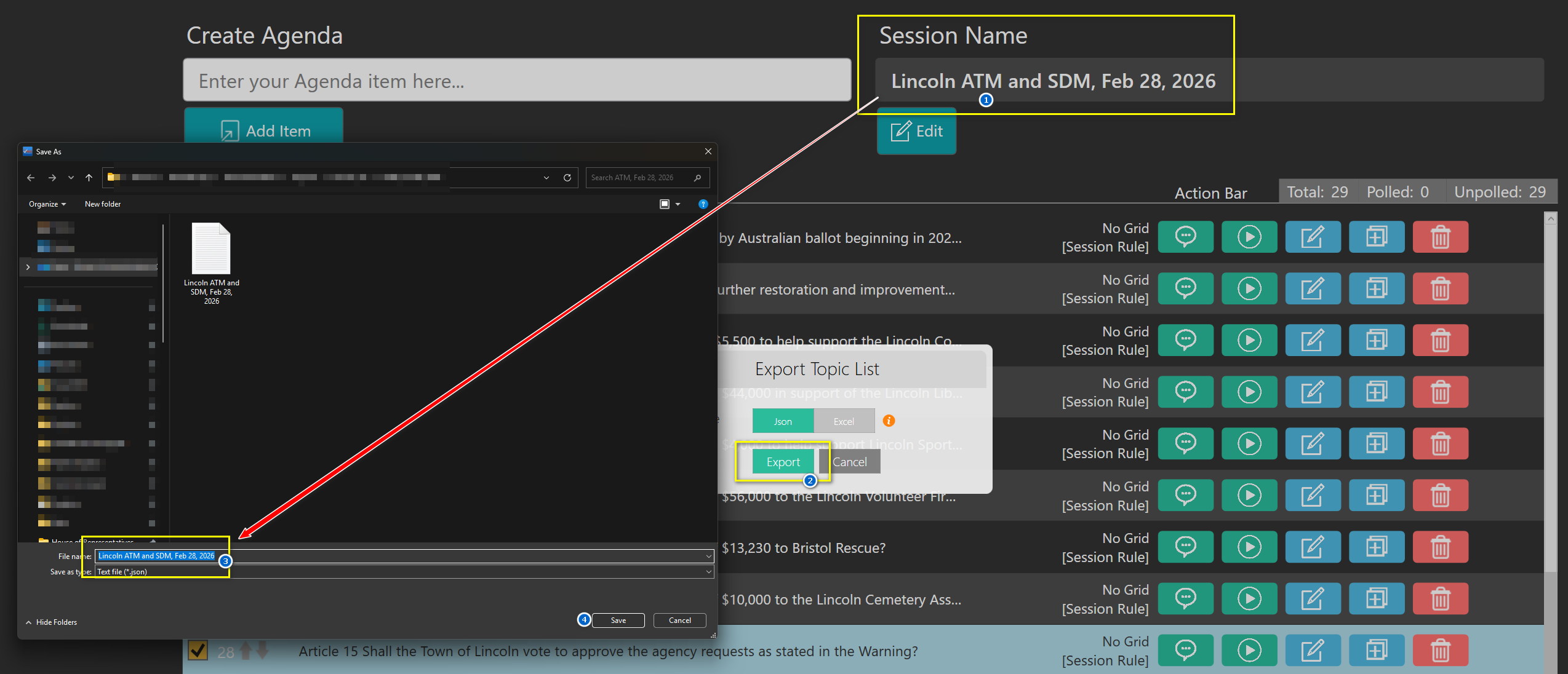
Now that you have completed your agenda page, you may want to export the agenda for future use. Using the export feature in the bottom right, you have the option to export as an excel file or a JSON file. Exporting as an excel file is advantageous if you wish to print the agenda, or if you would like to edit the file later. You have the option to choose a portrait or landscape orientation for the excel file. Selecting the export button will prompt the user to save the file and after saving the file will pop up a print preview window.
Exporting as a JSON file is ideal if you wish to import the file back into TownVOTE for later usage. Remember that your file name will be the same as the session name in TownVOTE. You may also import an excel file if desired.
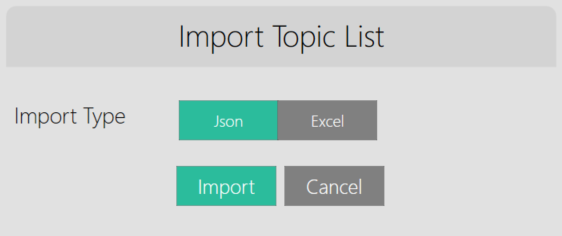
Importing an agenda back into TownVOTE is as simple as clicking the import button in the bottom right and selecting your desired JSON or excel file agenda. Be sure that the file is not open on your computer or else you will not be able to import it.
YOUTUBE TUTORIAL

RELATED ARTICLES
Printing the Agenda in TownVOTE
How to Access the Settings Panel in TownVOTE
Utilizing and Customizing Participants in TownVOTE
Checklist for Preparation for the Next Town Meeting
Was this article helpful? Please leave your feedback below
Was this article helpful?
That’s Great!
Thank you for your feedback
Sorry! We couldn't be helpful
Thank you for your feedback
Feedback sent
We appreciate your effort and will try to fix the article