PROBLEM
How do I use the new Countdown Timer feature in the TownVOTE voting and elections application to set a timer before each vote?
SOLUTION
Starting in EZ-VOTE Connect v3.18, you can find the countdown timer settings in the general settings dropdown menu from the settings sidebar in TownVOTE. To enable the countdown timer, click the toggle to the right of the "Set Countdown Timer" setting. Enabling this setting will allow you to edit the clickable hours, minutes and seconds fields. Edit the fields to change the length of the countdown timer to your liking and click the save icon when you are finished.
SETTINGS PANEL
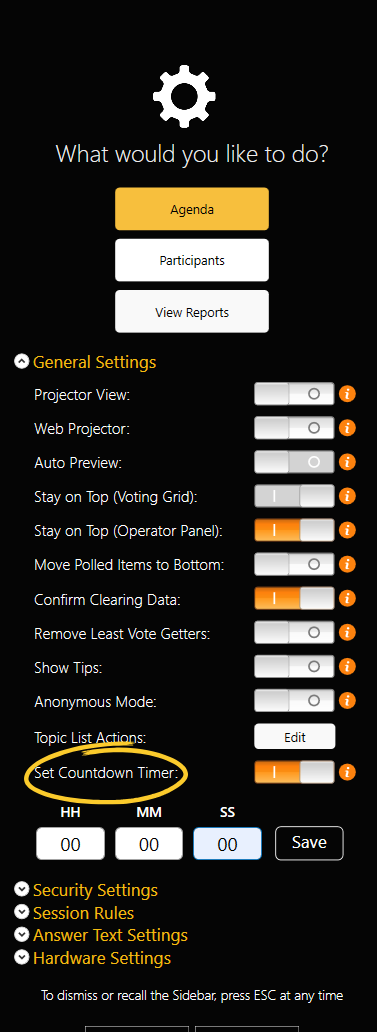
Now that you have set your countdown timer, the timer will activate upon opening a vote. The timer will not start until the vote is opened, and upon the conclusion of the timer, the operator will still have to close the vote manually. This is a safety feature to ensure that the vote is not closed prematurely.
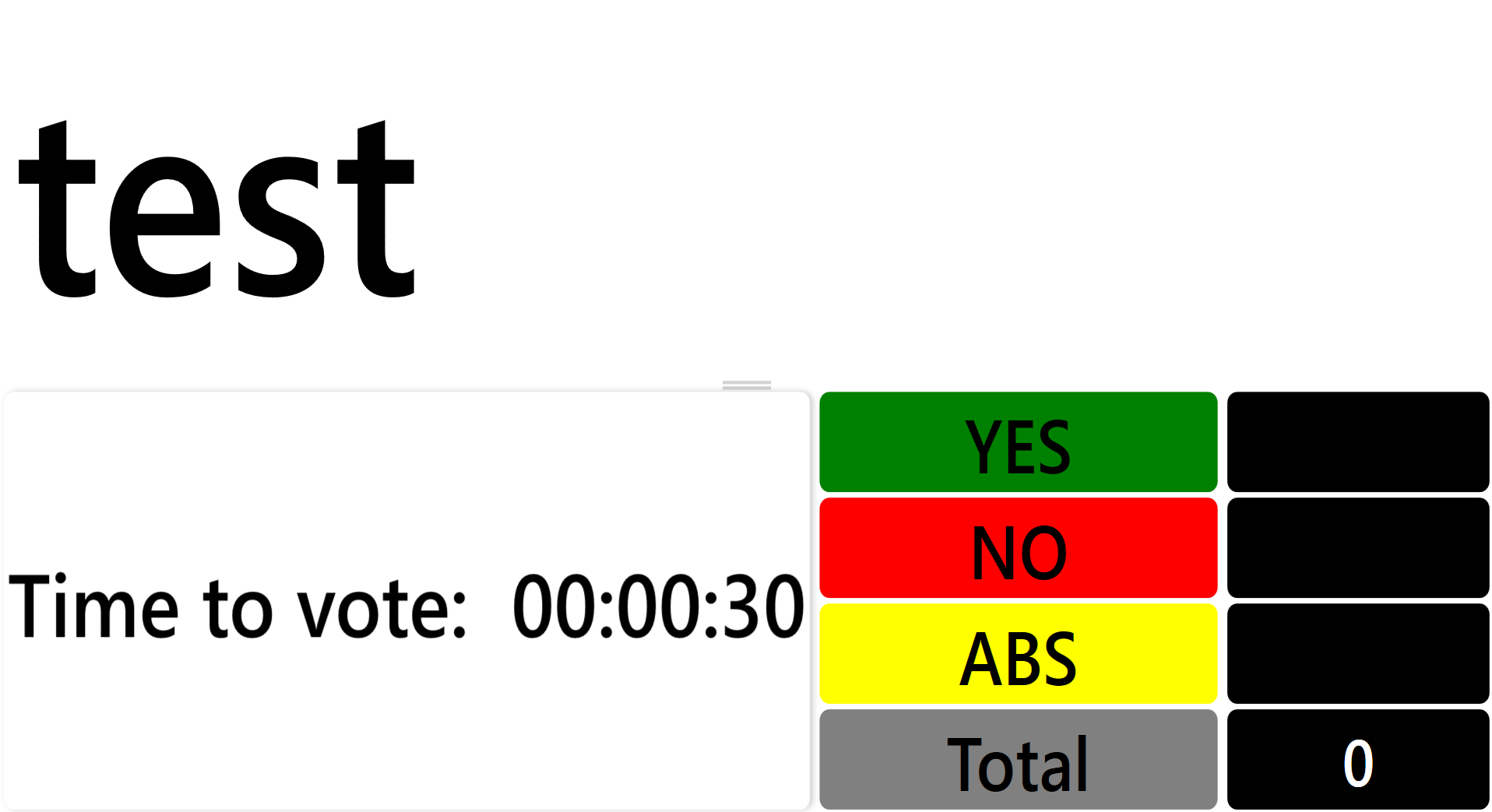
NOTE: that the countdown timer feature is only available when using the "No Grid" option and toggling the Participant Grid will get rid of the countdown timer. I set my countdown timer for 30 seconds, which means that the audience will see the projected view shown below, when I open the vote. Changing the length of the timer will affect all future agenda items, but you cannot change the countdown timer length in the middle of a vote.
YOUTUBE TUTORIAL

RELATED ARTICLES
Stop Auto-Inserting the Vote/Keypad Counter and Countdown Clock
Set up an identifiable vote in TownVOTE and prevent herd mentality
Was this article helpful? Please leave your fee
Was this article helpful?
That’s Great!
Thank you for your feedback
Sorry! We couldn't be helpful
Thank you for your feedback
Feedback sent
We appreciate your effort and will try to fix the article